Staff sign-in
Zitlin can tell who is standing at a shared terminal. Each person taps their name and punches a short PIN; from then on, what they do is recorded against them and the app shows them only what their role reaches.
Three things build on that, each with its own page:
-
The seven roles, and what each one can reach.
-
Opening a drawer with a float, counting it at the end, and rolling everyone who worked a shift into one report.
-
The audit log: the record of who did what, on which device.
Staff sign-in vs. Team
Easy to confuse with Settings → More → Team, which is a different thing:
| Team | Staff | |
|---|---|---|
| What it is | A full account: its own email and sign-in code | A name and 6-digit PIN, punched on a device already signed in |
| Set up by | Zitlin, on request — see Adding your team | You, directly, any time |
| Typical use | Someone who signs into Zitlin on their own device, from anywhere | Anyone working a shared terminal — front desk, kitchen |
Use Team for people who need their own access. Use Staff when several people share one device and you want to know which of them actually did something, without giving everyone a login of their own.
A staff member deliberately has no credential that works off the premises. There is no password and no email login — the only way to act as one is to punch a PIN into a device that is already signed in as the property.
Setting it up
Settings → More → Staff
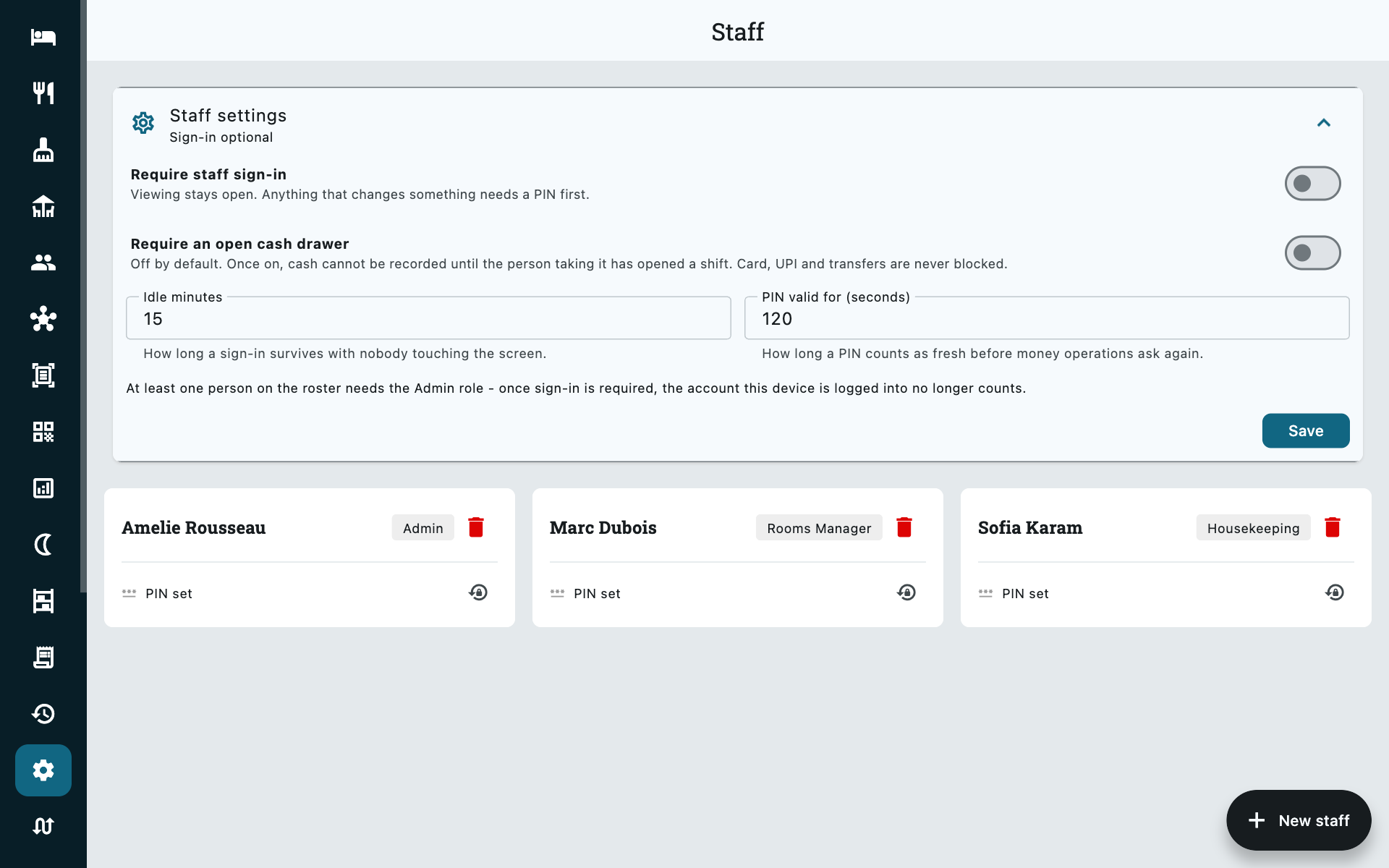
| Switch | Does |
|---|---|
| Require staff sign-in | Off by default. Once on, every change on this property needs somebody signed in first — viewing stays open. |
| Require an open cash drawer | Off by default. Once on, no payment — cash, card or transfer — can be recorded until the person taking it has opened a drawer. Needs your shifts set up first. See Cash drawer & shift report. |
| Idle minutes | How long a shift survives with nobody touching the screen before they are dropped back to read-only. |
| PIN valid for (seconds) | How long a PIN counts as fresh before a money operation asks for it again — see Re-confirming a PIN. |
Keep an Admin on the roster before you turn sign-in on
Once Require staff sign-in is on, the device account's role stops counting — only the person actually signed in governs what is reachable. Add at least one staff member with the Admin role first, or admin-only screens become unreachable the moment anyone signs in.
You are never locked out of this screen
Settings → More → Staff stays reachable even when sign-in is required and nobody is currently signed in. If a property locks itself out, an Admin can always get back in here and turn Require staff sign-in off.
Adding a staff member
New staff, on the roster.
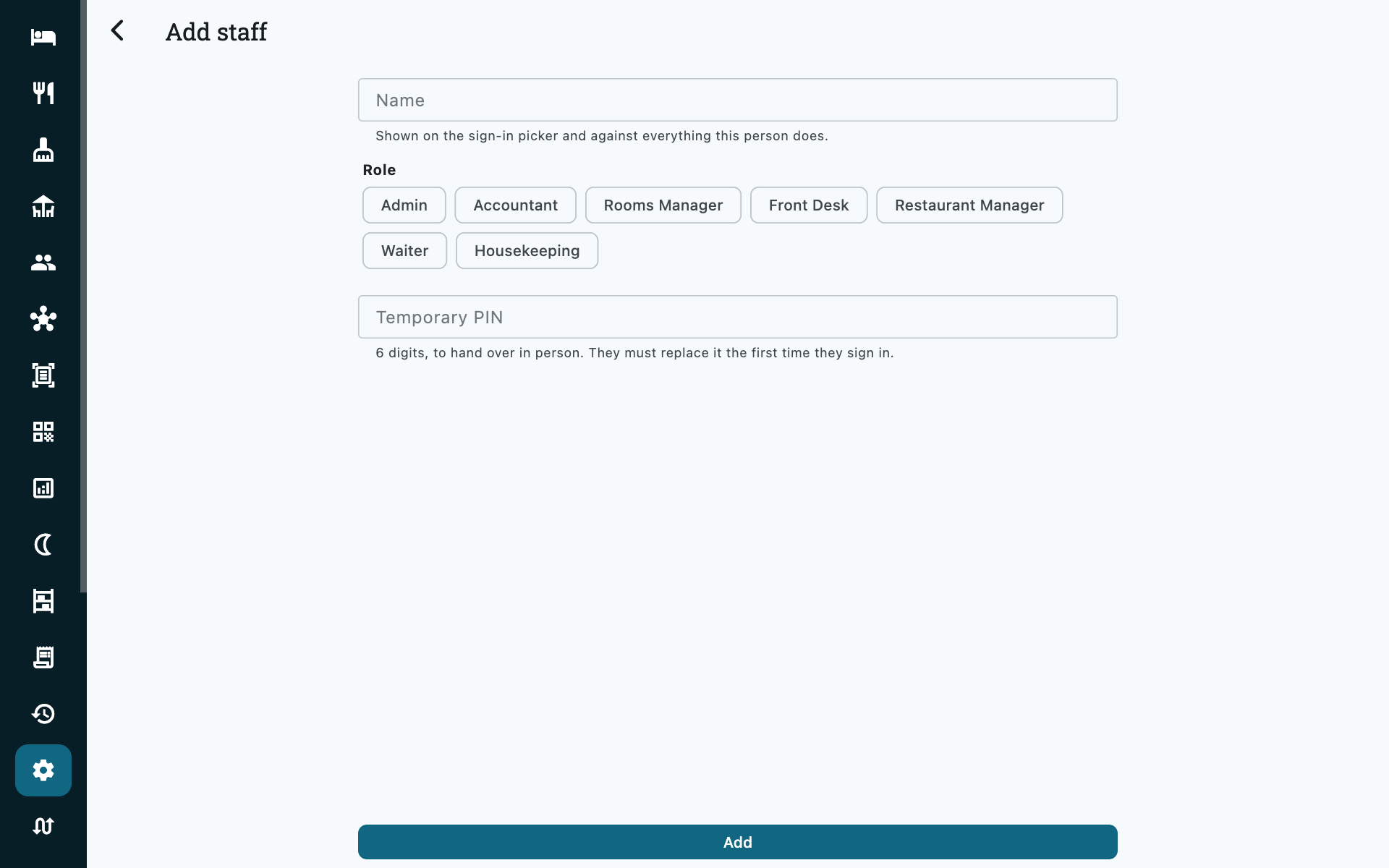
| Field | Notes |
|---|---|
| Name | Shown on the sign-in picker and against everything this person does. |
| Role | One of seven — see Roles & permissions. |
| Temporary PIN | 6 digits, handed over in person. They must replace it the first time they sign in. |
Deactivating someone (instead of deleting) keeps their name on past actions — they are signed out immediately and cannot sign in again, but the record of what they did stays intact.
Signing in and out
When sign-in is required, a picker replaces the blank screen the moment anyone touches something that changes data.
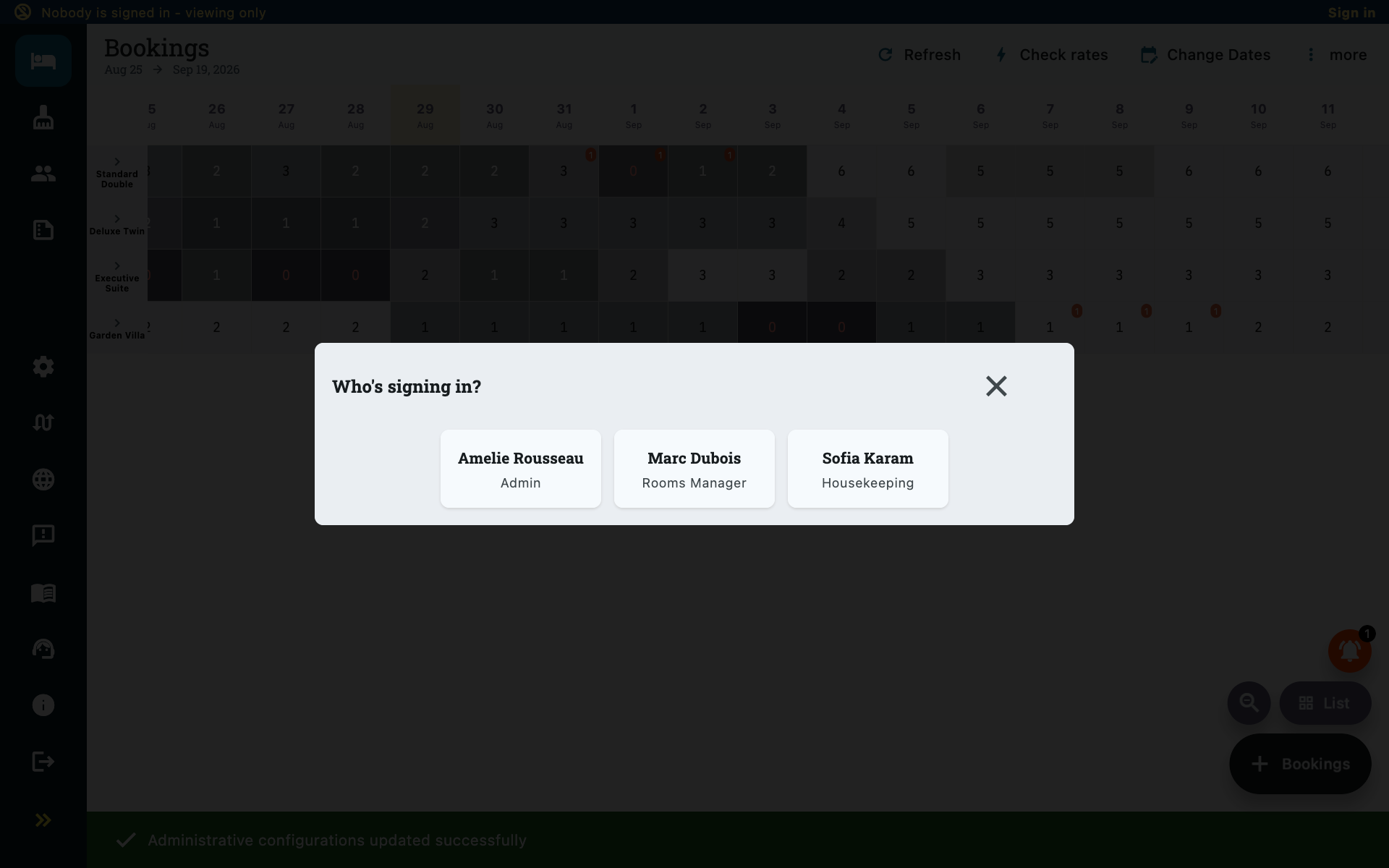
- Tap your name.
- Enter your 6-digit PIN.
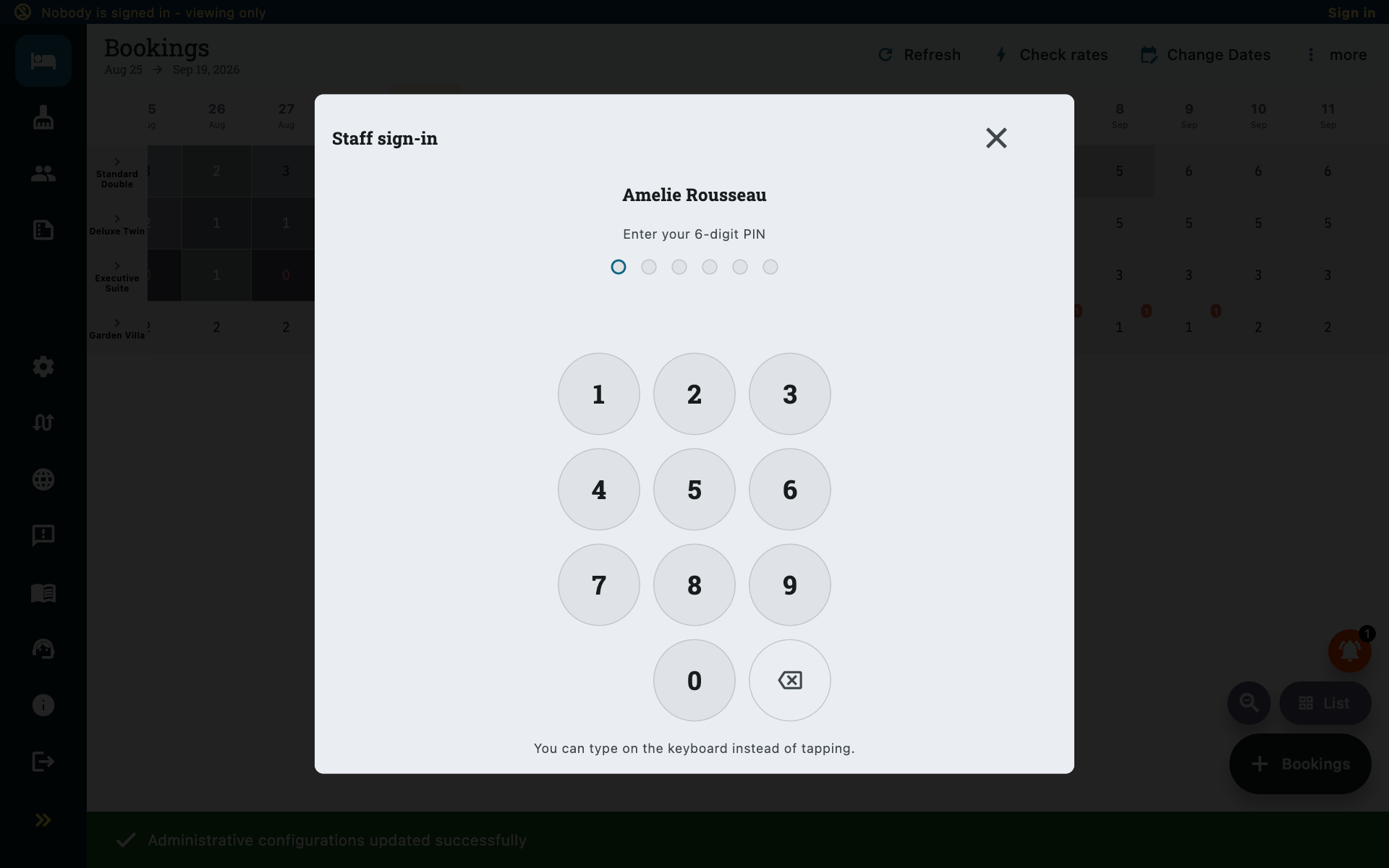
A banner across the top of every screen shows who is on shift, and lets them sign out. Nobody signed in still means the terminal can be viewed — the banner just says so.
Five wrong guesses locks that PIN out
Briefly at first, longer if it keeps happening — up to five minutes. It protects against someone guessing a colleague's PIN, not against an honest mistake. The counter belongs to the person, not the device, so one locked-out PIN never locks the whole front desk out of Zitlin.
Choosing your own PIN
A temporary PIN handed out by an Admin has to be replaced the first time it's used — nobody keeps working on a PIN somebody else knows. Afterwards, Change PIN from the shift banner asks for the current one first.
Re-confirming a PIN for money
A short list of actions ask for the PIN again, even mid-shift, once it has gone stale (PIN valid for (seconds), above):
- voiding, settling or editing an invoice
- overriding a nightly rate
- cancelling a booking
- recording or correcting a prepayment
- taking or returning a security deposit
- reverting a check-in or check-out
- closing a cash drawer
Everything else just needs somebody signed in.
Common questions
We turned on Require staff sign-in and now the front desk can't do anything
Open Settings → More → Staff — it stays reachable even when nobody is signed in — and either sign somebody in, or turn Require staff sign-in back off.
Can two people share a PIN?
Yes, nothing stops it, but it defeats the point. The picker asks for a name before it checks the PIN, so a shared PIN just means every action gets attributed to whoever happened to tap their own name — not who actually typed it. It also makes a cash drawer meaningless: two people in one till is a count nobody can be asked about.
Someone left — do I delete them?
No. Deactivate them instead, from the roster. They are signed out and cannot sign in again, but past actions still show their name.
Why does an action show the device account instead of a person?
Either nobody was signed in when it happened, or Require staff sign-in was off at the time. Staff Accountability records every action either way, whether or not anyone has started punching in PINs yet.
We don't want to pay for extra Team seats — is Staff a substitute?
Not really. Staff sign-in identifies who is doing something on a device that is already signed into Zitlin as the property — it doesn't grant remote access. Someone who needs to sign into Zitlin from their own phone or laptop still needs a Team account.