Housekeeping
Housekeeping in the main menu. Two tabs over the same property:
- Rooms — every room you have, once, with what it reads as right now. This is the one you open in the morning and the one the front desk checks before giving a walk-in a key.
- Tasks — the work itself, as cards you assign to people and tick off.
Rooms tells you what state the property is in; Tasks tells you what is still to be done about it. Most of the second builds itself from your bookings.
The Rooms tab
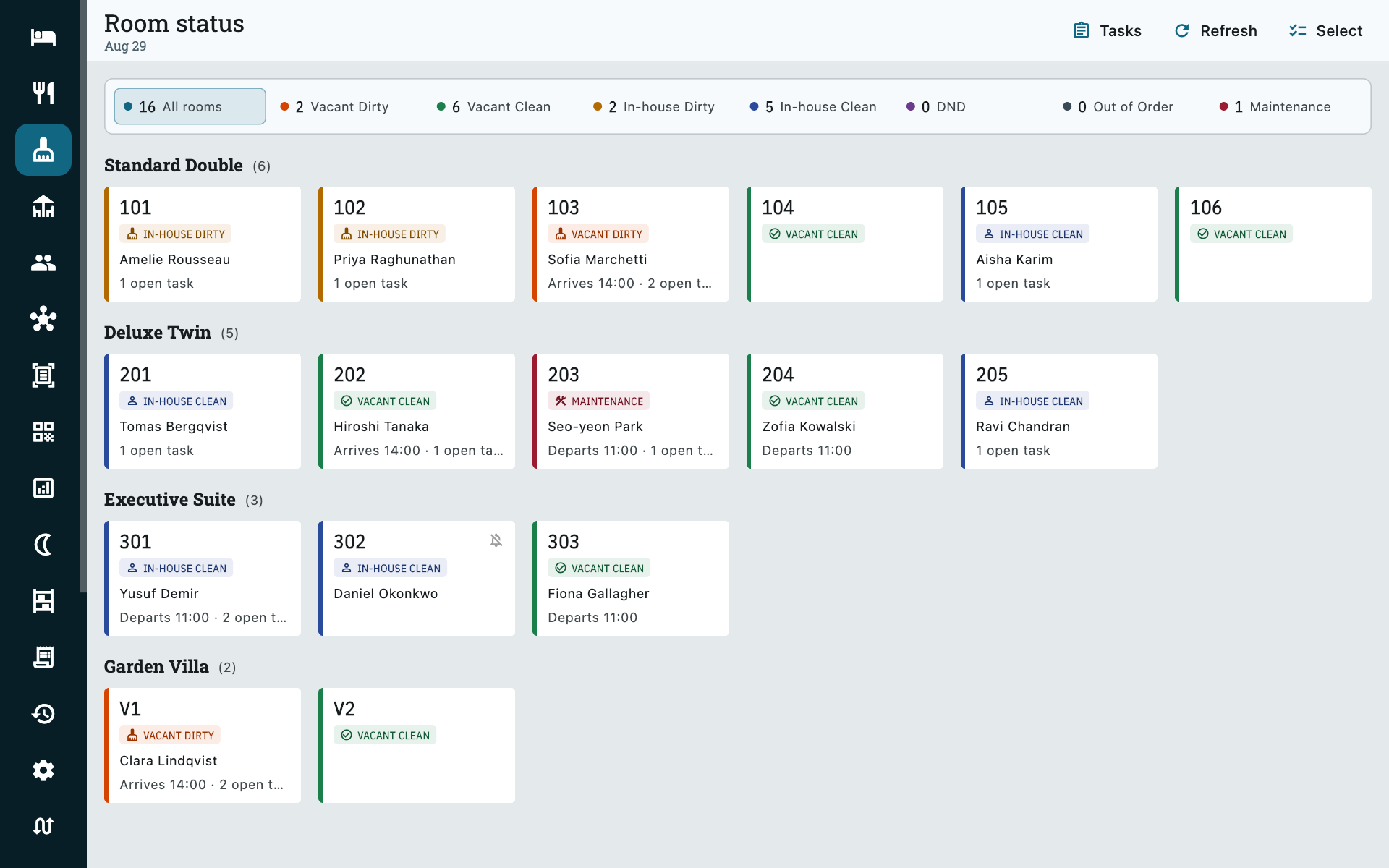
One tile per room, showing what the property reads as right now. The status is two facts in one word — whether anybody is in the room, and what condition it is in:
| Status | Short | What it means |
|---|---|---|
| Vacant Clean | VC | Empty and ready. This is the room you can sell right now. |
| Vacant Dirty | VD | Empty and needs turning — usually last night's departure. |
| In-house Clean | OC | Guest in the room, serviced today. |
| In-house Dirty | OD | Guest in the room, not serviced yet. Their things are still in there — a refresh, not a strip. |
| DND | — | Guest declined service today. |
| Maintenance | OOS | Something is being fixed. Still sellable. |
| Out of Order | OOO | Blocked and off sale. |
Whether a room is occupied is never something you set — it comes from your bookings, so it is right without anybody keeping it up to date. Check a guest in and the room becomes In-house; check them out and it becomes Vacant Dirty the same second.
There is no date on this tab, and that is deliberate
The Rooms tab is always today. Occupancy could be framed to any day — the booking book knows every day — but a room's condition is a single current value with no history behind it. Asking for last Tuesday would cross that Tuesday's bookings with this morning's cleanliness and answer confidently with something that was never true.
The Tasks tab is the one with dates on it, because a task belongs to a day.
Maintenance and Out of Order are not the same thing
Maintenance is a note about condition. A room on Maintenance can still be booked and checked into — which is what you want for a dripping tap you will fix this afternoon.
Out of Order means the room is genuinely off sale, and comes from a blocked room with dates on it. If a room must not be sold, block it — putting it on Maintenance will not stop anyone.
This is also why availability never looks at cleanliness: a room sitting on Dirty can still be sold and checked into, which is exactly what you need at eleven in the morning.
Reading the board
Tiles sit under their room type, in your own category order, with a count on each heading.
Across the top is a strip of counts — one per status, plus All rooms. Those counts are always of the whole property, whatever is on screen. Tap one to show only those rooms; tap it again to come back. Vacant Dirty first thing in the morning is the shift's work in one tap.
Under the room number, each tile says what there is to say about it:
| Line | When it appears |
|---|---|
| A guest name | Somebody is in the room, arriving today, or leaving today. |
| Arrives 2:00 PM / Departs 11:00 AM | The room turns over today. If it does both, the arrival is shown — that is the deadline. |
| 2 open tasks | There is still work on the board for that room. |
| A struck-through bell | That stay has No daily service on it. This is the answer to "why has this room no card". |
| A reason, greyed out | The room is blocked. Out-of-order tiles are greyed on purpose: they are not part of today's sellable property. |
A vacant room with nothing to say carries no line, rather than a placeholder.
Changing a room's status
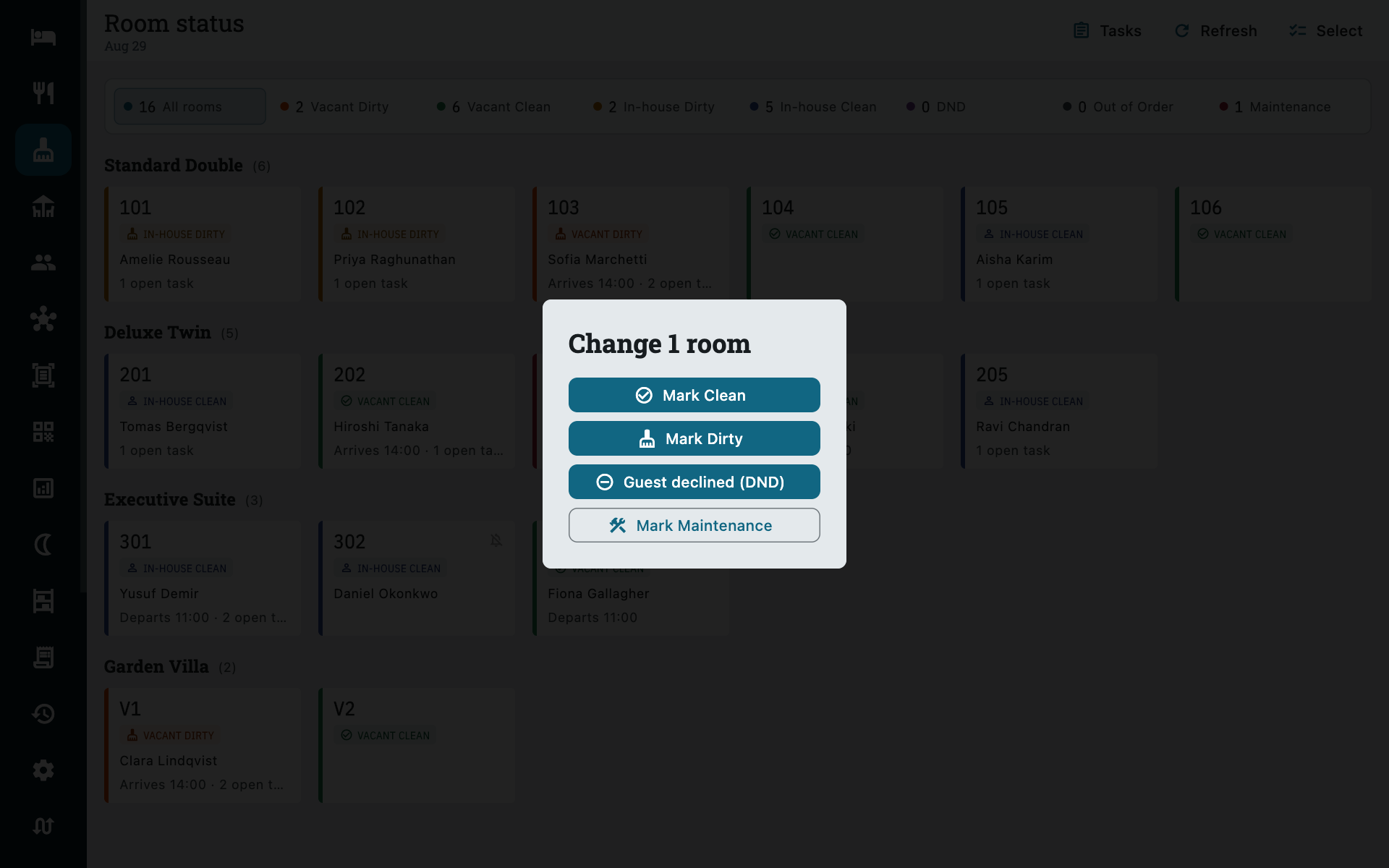
Tap a tile and pick Clean, Dirty, Maintenance or DND. Use Select first to do a batch — eight rooms reported done at once is one action, not eight.
Marking a room Clean also closes the day's cleaning task for it, so the two tabs never disagree. You do not have to go and tick the card as well.
Maintenance here is the quick flag — the tap you make standing in the doorway. It changes the room's condition and nothing else. If the work should be tracked and given to somebody, raise a Maintenance task instead: that sets the same condition and puts a card on the board.
DND is for the guest who waved you away this morning. It closes the day for that room without pretending the room was serviced — which matters, because declined rooms are counted separately from completed ones in Reports → Housekeeping and are left out of each person's completion figures.
A guest who never wants their room serviced
DND is today only. For a guest who has asked not to be disturbed for the whole stay, open the booking and turn on No daily service instead — see below.
The Tasks tab
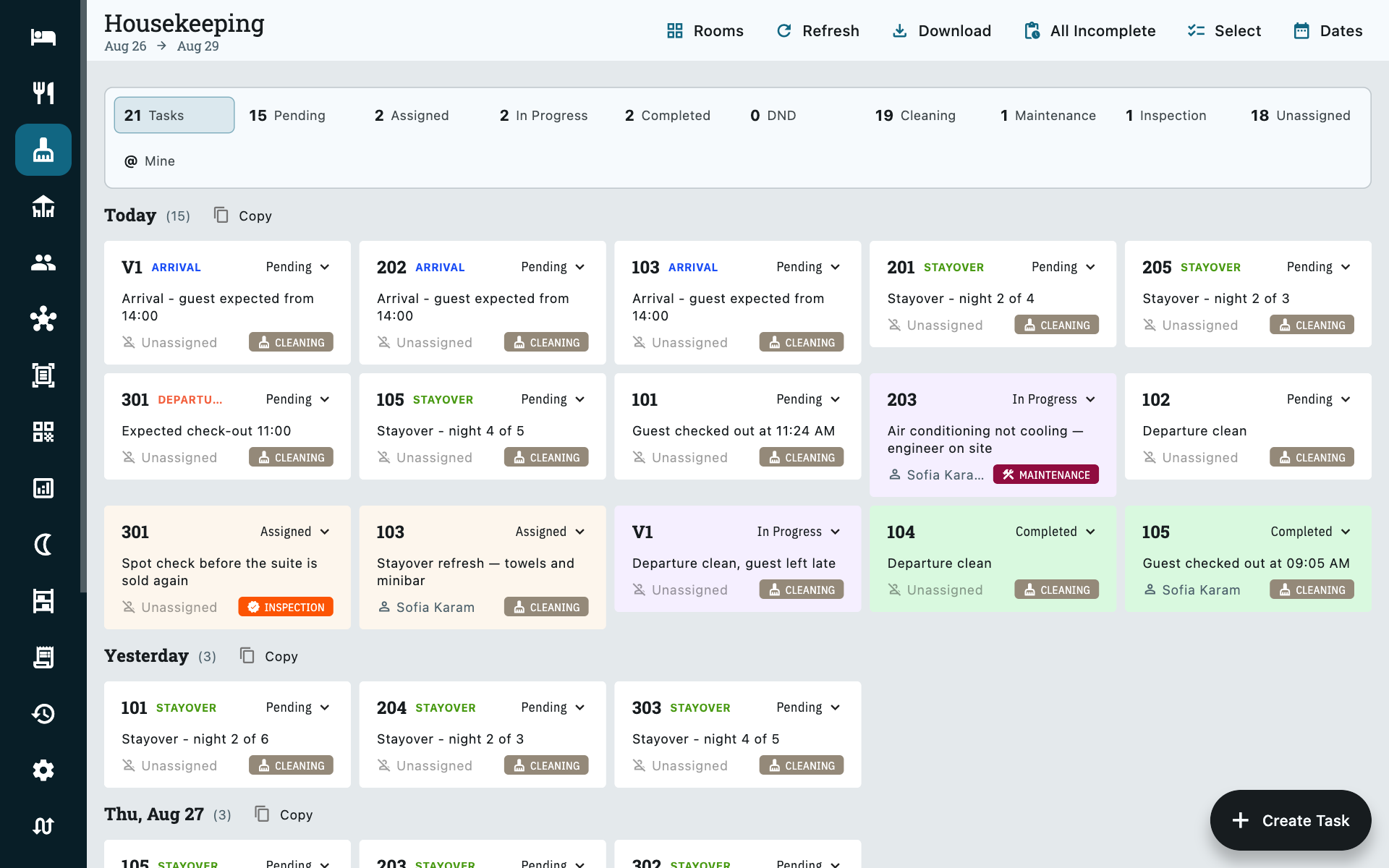
One card per task: the room, what kind of work it is, its status, who it belongs to, the note it was raised with, and when it was created and finished.
| Button | What it does |
|---|---|
| Download | Exports what is currently on screen as a CSV. |
| Filter | Narrow by task type, status or person. All Incomplete is the one you want at the start of a shift. |
| Select | Multi-select, for changing or assigning several tasks at once. |
| Dates | The range the board covers. |
The dates are the day the work belongs to
Not the day the card was typed. A task raised at midnight for today, or written up yesterday for tomorrow's arrival, sits under the day it is worked. The board opens on the last three days.
All Incomplete is the exception, and deliberately so: it ignores the date range and returns everything unfinished, however old. Work does not stop mattering because the window has moved past it.
Task types
| Type | For |
|---|---|
| Cleaning | Departure cleans, stayover refreshes, linen. |
| Maintenance | Something broken. Raising one puts the room into Maintenance straight away. |
| Inspection | A supervisor check. Never touches the room's status. |
Statuses
Pending → Assigned → In progress → Completed. Nothing forces the order — move a task straight to Completed if that is what happened.
DND is the fifth, and it is an ending rather than a step: the guest declined, so the work did not happen. It closes the card without counting as a clean.
What the status does to the room:
| Task type | While the task is open | Once it is completed |
|---|---|---|
| Cleaning | Dirty | Clean |
| Maintenance | Maintenance | Clean |
| Inspection | Unchanged | Unchanged |
Closing a card as DND never moves the room's condition, whatever the task type. Nobody went in, so there is nothing new to record about the room.
The day's work, raised for you
Most of the board should arrive without anyone typing it. Zitlin builds it from the bookings you already have, in two ways.
At the start of each day
Every hour, Zitlin looks at your reservations for the day in your property's own timezone and raises the work they imply:
| Switch | Raises |
|---|---|
| Arrival tasks | A task on each booking's arrival date, so the room is ready before the guest gets there. Skipped if they have already checked in. |
| Stayover tasks | A task for the nights between arrival and departure — the refresh a guest in house needs. Skipped for bookings marked No daily service. |
| Departure tasks | A task on the date a booking is due to end, raised before anyone actually leaves. |
Settings → Admin → Housekeeping
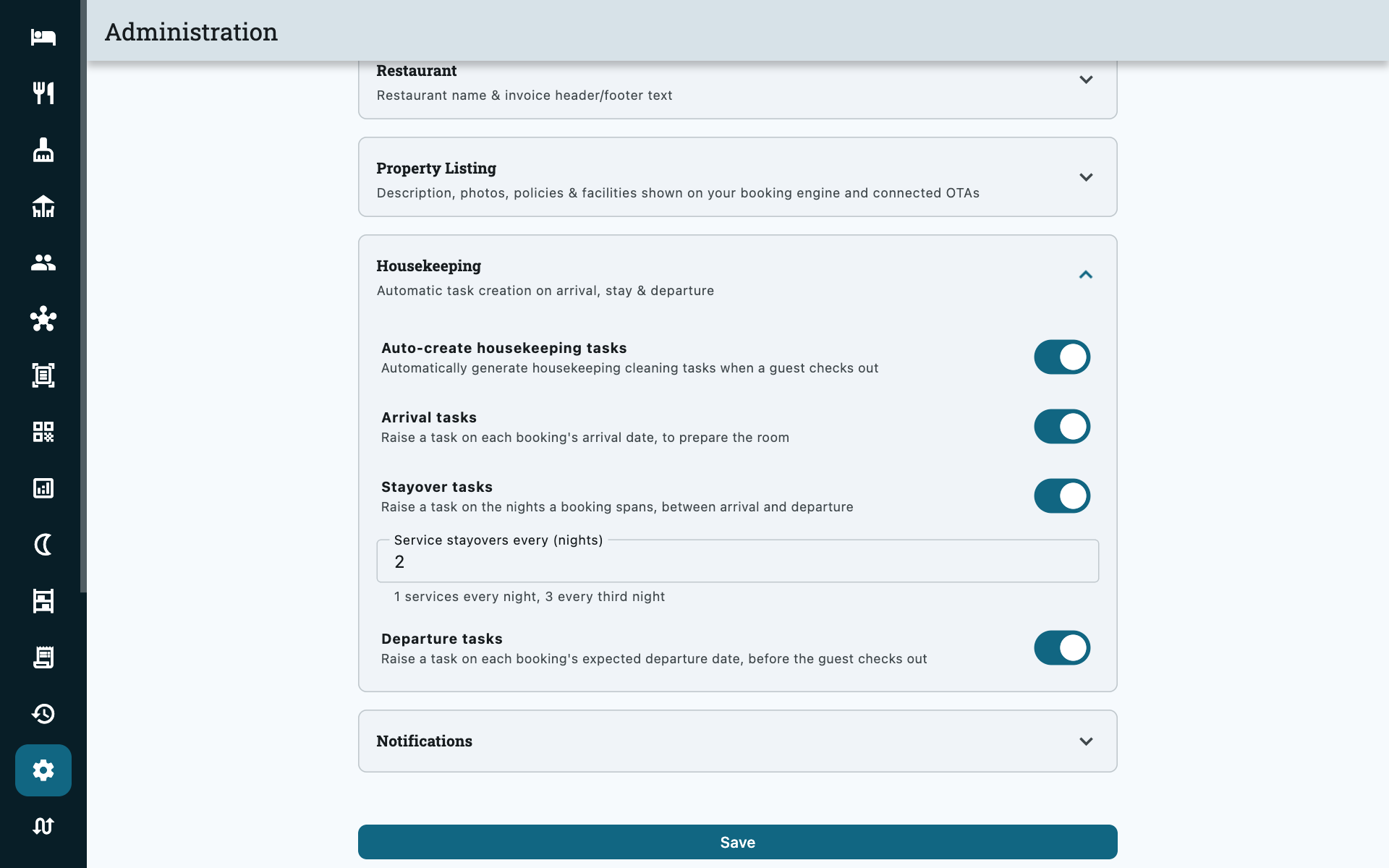
All three are off until you turn them on. Service stayovers every (nights)
decides how often a staying guest is serviced: 1 is every night, 3 is a
linen change every third night.
Departure tasks are the one most properties want
They are what lets housekeeping see the day's expected check-outs at 7am instead of finding out room by room as guests hand their keys in. The card carries your standard check-out time, and is updated with the real one when the guest actually leaves.
A guest who does not want their room serviced
Open the booking and turn on No daily service. No stayover task is raised for that booking for the rest of the stay, and if today's has already appeared it is withdrawn — unless somebody has started it or been given it.
This is the standing arrangement, and is not the same as tapping DND on the Rooms tab — that one is about this morning only.
Their arrival and departure tasks still happen. Preparing a room before a guest arrives and stripping it after they leave are not services a guest declines. See Front desk.
Only ever today
Zitlin does not fill the board a week ahead. Bookings move, and a board full of work that might not happen is worse than no board. Cancel a stay and the tasks raised for it that nobody has started are withdrawn with it.
When a guest checks out
Checking a guest out marks the room Dirty and stamps the task with the time they left — Guest checked out at 11:24 AM. If the day's departure task already exists, that is the card it stamps, so you get one card per room rather than two; if there isn't one — an early departure, or automation off — it raises one.
Turn Auto-create housekeeping tasks off only if your team raises everything by hand; with it off, checking out leaves the room's status exactly as it was. See Check-in and check-out.
Raising a task yourself
Create Task, bottom right of the board.
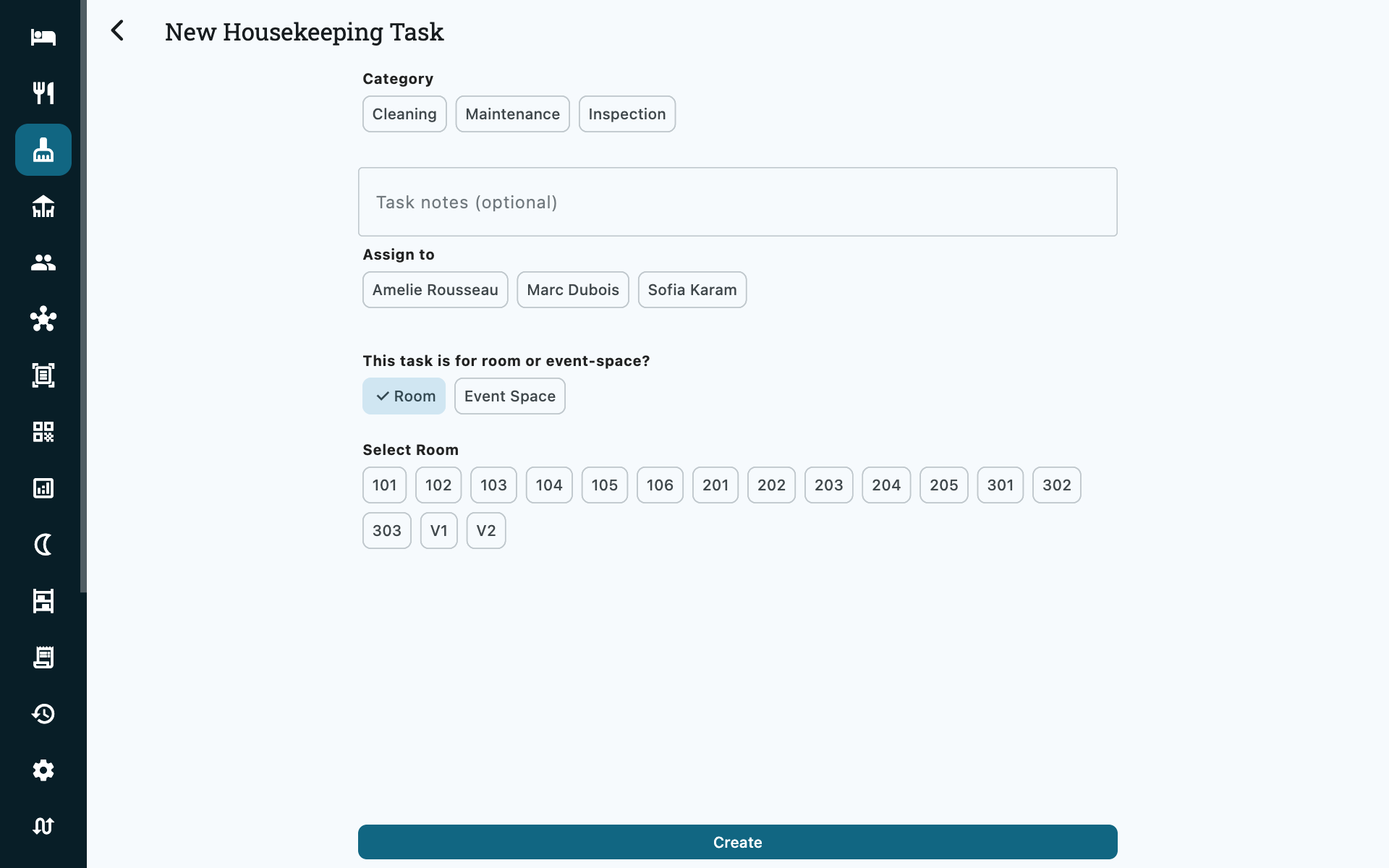
| Field | Notes |
|---|---|
| Category | Cleaning, Maintenance or Inspection. |
| Task notes | Optional, but this is the part your cleaner actually reads. Guest reports the shower is blocked beats an empty card. |
| Assign to | Optional. Who the work belongs to — leave it empty to put it in the pool. |
| Room or event-space | Which of the two the task is for. The picker underneath then lists your rooms, or your halls. |
New tasks start as Pending and are dated to today. A Maintenance task marks its room Maintenance as soon as you create it, so the room reads as out of order everywhere its status is shown.
Editing a task afterwards changes what the work is — its category, its note, its room, who has it. It never moves the task's status; that is the board's job.
Who can raise a task
Everyone who can open Housekeeping can raise a task and set a room's status, the Housekeeping role included — see Roles.
Handling several tasks at once
Work arrives in batches — eight rooms handed to one cleaner at seven, the same eight reported done at eleven. Both are one action, not eight.
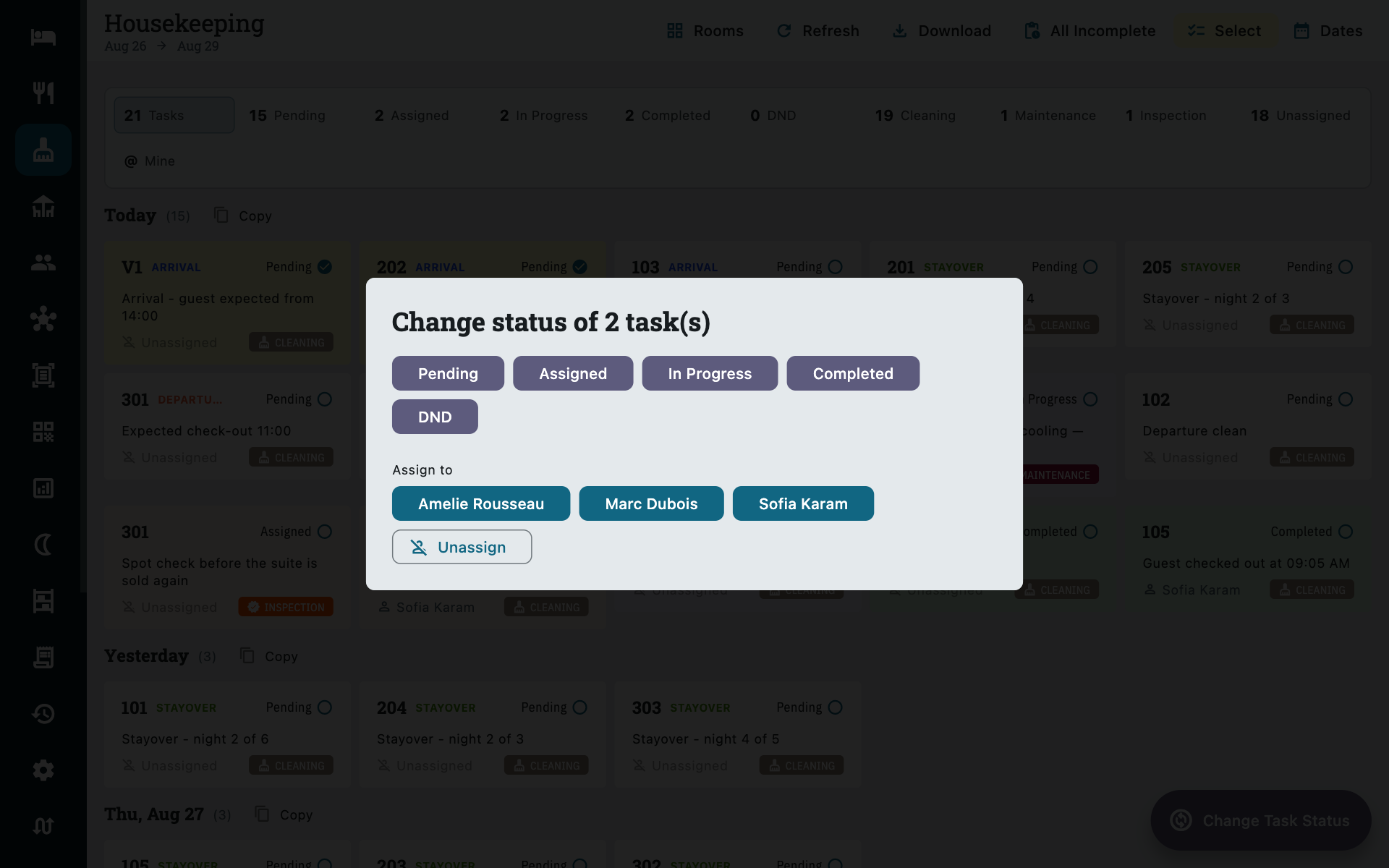
- Select.
- Tap each card — ticked cards are highlighted.
- Change Task Status, then either:
- pick a status, which applies to every selected task and takes each room's status with it, or
- pick a person under Assign to, which hands them the batch. Unassign puts the work back in the pool.
For a single task, tap the coloured status chip on its card instead. To change who has one task, open it and use the Assign to field.
Assign at the start, update at the end
Assigning in the morning is what makes the rest work: the Mine filter gives each person their own list, the printed CSV names who has what, and Reports → Housekeeping counts what each person completed.
Handing over a shift
Two ways to get the work out of Zitlin and into your team's hands.
Print the task list
Filter the board to All Incomplete, then Download. The CSV carries the date, the task type, the room, the notes, who it is assigned to and the status of everything on screen — print it, hand it over at the start of the shift, and collect it back to update the board in bulk afterwards.
Copy the room numbers
Bookings → list view. Copy next to a group heading copies that group's room numbers as text, ready to paste into WhatsApp or a message to the supervisor.
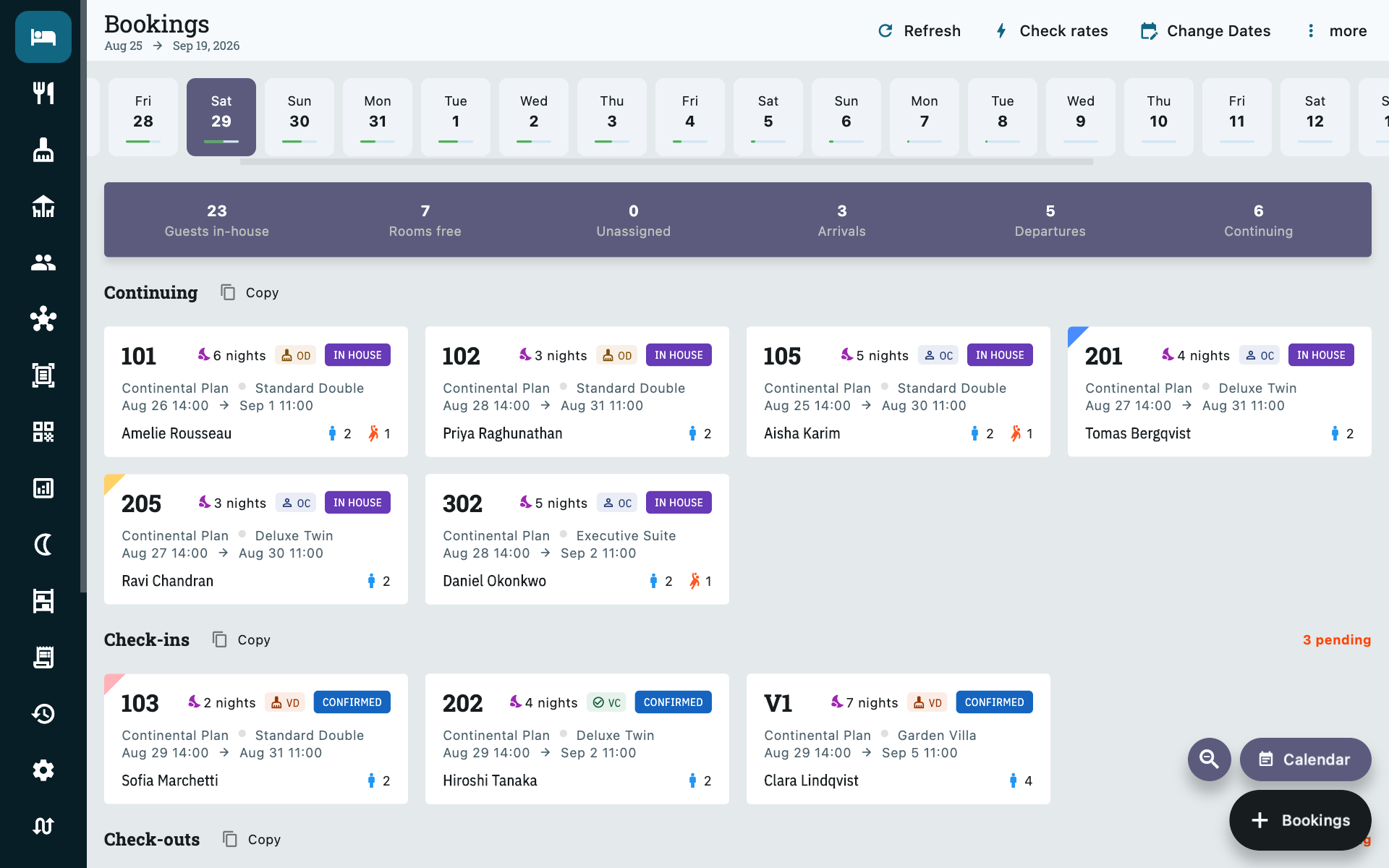
- Check-outs — the rooms that will need cleaning today.
- Check-ins — the rooms that have to be ready, and by when.
- Continuing — stayovers: refresh them, don't strip them.
Where else room status shows up
| Where | What you see |
|---|---|
| Housekeeping → Rooms | The whole property at a glance, and the fastest place to change a status. |
| A booking, opened | The status beside the room name on the check-in panel, and on each room row of the folio. Is 204 ready answered where the Check In button is, rather than two screens away. |
| Choosing rooms on a booking | The trade code — VC, VD, OOS — on each room button, so a dirty room is visible before it is picked. |
| Settings → Property → Rooms | Each room's condition, and the place to set one by hand. |
| Reports → Housekeeping | Task status for the day — completed and declined counted apart — plus rooms in maintenance. See Reports. |
On a booking, only for today
Both of the booking screens show a status only where there is an honest one to show — a stay that touches today, and a room picker for a stay starting today.
For a booking three weeks out there is no badge at all, and that is not a fault. The room is free on those dates, which is why it is being offered, but its condition is about this minute — somebody is asleep in it tonight. Putting "VC" on it would be answering a question nobody asked.
Common questions
A room is stuck on Dirty
Open Housekeeping → Rooms, tap the room and mark it Clean — that also closes whatever cleaning card was still open on it. If you would rather work from the card, filter the Tasks tab to All Incomplete and complete it there instead.
Can I delete a task raised by mistake?
No. Mark it Completed — nothing is ever removed from the board, so the record of what was raised and when stays intact.
Can I assign a task to a particular housekeeper?
Yes — on the task itself, or to a batch at once from Select → Change Task Status → Assign to. Staff appear by name. Anyone on your staff roster can be given work, whether or not they have a login of their own — a housekeeper normally has a name and a PIN and no account at all. Add them under Settings → More → Staff, not Team; see Staff & permissions.
My housekeeper only sees this one screen
That is the role working as intended. A Housekeeping user signs in straight onto the board and has nothing else in the menu — no bookings, no guests, no rates. They can see the whole board, not only their own tasks: unassigned work has to be visible to whoever picks it up. The Mine filter is there when they want just theirs.
On a property using staff sign-in, Mine follows whoever punched in with their PIN — not the account the tablet is logged into — so one shared device in the corridor still gives each person their own list.
The Tasks tab is empty
Check the date range first — it opens on the last three days, and on the day each task is due. If it is genuinely empty on a day with arrivals and departures, the three switches under Settings → Admin → Property Information are still off.
A guest left a day early — will the board be wrong?
No. Checking them out stamps the day's departure task with the real time and marks the room dirty, whichever day that happens on. The expected-departure task for the original date is not raised once they have gone.
A guest doesn't want their room serviced
For the whole stay, turn on No daily service on their booking. The switch stays on until somebody turns it off, so a guest who changes their mind on Thursday needs it cleared.
For today only — they waved you away at the door this morning — tap the room on Housekeeping → Rooms and pick DND instead. That closes the day for that room and nothing carries over to tomorrow.
The booking switch is labelled No daily service (DND) in the app, which is the older name for it; the two are still different things.
It only stops the daily task. The clean before they arrived and the strip after they leave are unaffected, and the room still appears on the day's departure list.
Nothing is put on the board to say the room was skipped: the guest declined, so there is no work. The switch shows on the booking itself if you need to check why a room has no card.
Why did tasks appear for a booking I cancelled?
They shouldn't stay. Cancelling a stay withdraws the tasks Zitlin raised for it, as long as nobody has started them or been given them — anything a person has picked up is left for them to close.