Front desk
Bookings in the main menu. This is where your day happens: taking bookings, assigning rooms, checking guests in and out, and collecting money.
One important idea before anything else. Zitlin separates two things that other systems merge:
- A folio is the bill and the guest it belongs to.
- A booking is one room for one set of dates, sitting on that folio.
A family taking three rooms is one folio with three bookings — one bill, one lead guest, three rooms to clean. That is why the buttons say Add Bookings rather than New Booking, and why you will see actions like Check-In all Bookings.
Two views of the same day
Bookings shows your property two ways, and the button just above + Bookings switches between them. It remembers your choice, so pick the one that suits how you work and it will be there tomorrow.
Calendar
Rooms down the side, dates across the top. This is the view for planning — it shows you where the gaps are, which is what you want when a guest asks whether you have something next Tuesday.

- Tap an empty cell to start a booking for that room and date — both are carried into the form.
- Tap a booking to open it.
- Change Dates moves the window; the magnifier fits more or fewer days on screen.
- Each date column is headed by its weekday above the date, so which column is Saturday can be read rather than counted across. The most condensed zoom drops it — the columns are too narrow for three letters, which is the trade that zoom is making.
- Rooms are grouped by room type, and each group folds. A folded row shows how many of that room type are sold on each date, shaded darker as it fills up — the quick answer to "have I got a Deluxe free on Saturday". Tap the row to open it and see the individual rooms; tap again to fold it back. A property with a single room type opens expanded.
- OTA blocks from a connected calendar feed appear as OTA Bookings rather than as normal bookings. See Channel manager.
List
The same day, grouped by what has to happen to it rather than by room. This is the view for working the desk: the calendar answers "what does next week look like", the list answers "what do I have to do now".
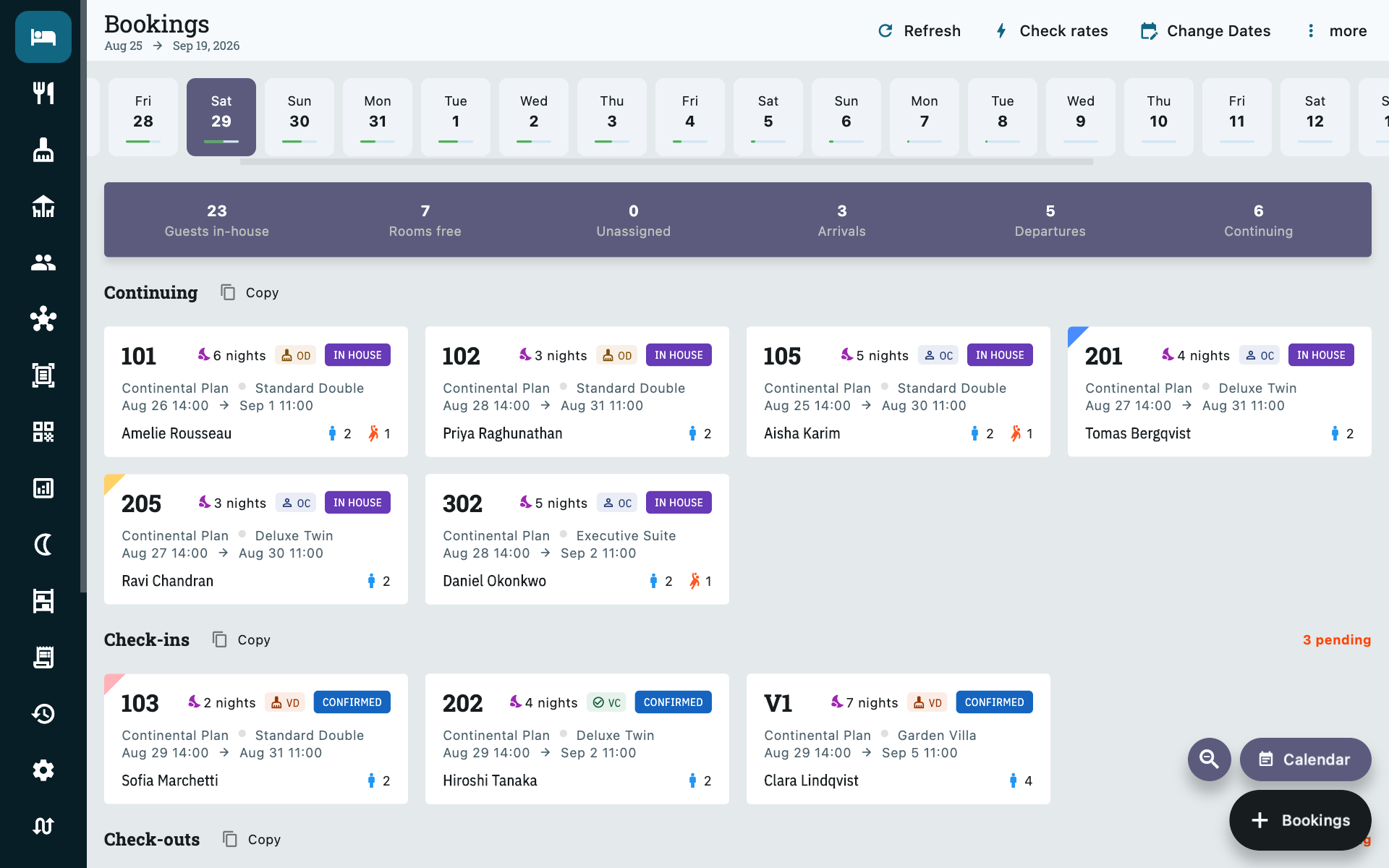
Across the top, the day at a glance — guests in house, rooms free, unassigned bookings, arrivals, departures and continuing stays. Below it the bookings themselves under Continuing, Check-ins, Check-outs and OTA Bookings, each card showing the room, guest, nights and status.
Copy next to a heading copies that group as text, which is the quick way to send a handover message or a morning arrivals list — or the day's room numbers to your housekeeping supervisor.
Under More you will also find Blocked Rooms, Booking Summary and Meal List — the meal list is the one to hand your kitchen in the morning.
Finding anything
The search box at the top of the menu is on every screen, and it is the fastest way to get to something you already know exists. One box: type whatever the guest in front of you just said.

You do not have to tell it what you are searching for. It works that out from what you typed, then groups what it found.
| If you type | It looks for |
|---|---|
221 |
Booking #221, bill and receipt number 221, and any phone number containing 221 |
PGH/26/RO-221 |
That exact bill — the whole number as printed |
RO-221 |
Bill 221 in the room series, in every year it was issued |
AD-12, SD-4 |
Advance receipt 12, security deposit receipt 4 |
Reyes |
Guests, their stays, restaurant orders in that name, and the bills raised against them |
98765 |
Any guest whose phone or ID number contains it |
4123456789 |
An OTA reference, as printed on a Booking.com confirmation |
A few things worth knowing:
- Restaurant orders are in here too, under their own group. A walk-in diner is never in the guest book — the restaurant screen takes a bare name and phone onto the order itself — so this is the only way back to their order without going through the day's list. They match on order number, on the phone taken with the order, and on the diner's name. See Restaurant.
- Bill numbers repeat between years.
RO-221is issued once each financial year, so a bare number can return more than one bill. Each result shows the full number —PGH/26/RO-221— which is the one that is unique. Type the whole thing and you get the single bill. - The chips narrow what you already have. They show how many of each were found, and switching between them does not search again.
- Two characters is the minimum, because a bill can genuinely be numbered
12. Searching by name needs three. - Ten per group. If there are more, Show more widens that one group.
- Results open the thing itself — a booking opens its folio, a bill opens the invoice, a receipt opens the folio it was taken against.
What you can find depends on who is signed in
Search never shows anyone something they could not open anyway. A restaurant manager searching a bill number finds restaurant bills and not room or event bills; advance and deposit receipts need Rooms Manager or above.
On a property using staff PINs, a terminal with nobody signed in can still look up guests, bookings and restaurant orders — the front desk needs that with the desk empty — but bills and receipts are withheld until someone punches in. Search tells you when it has held something back rather than quietly showing you a short list.
Quoting an enquiry

Check rates, on the Bookings toolbar. Somebody is on the phone asking what you have for next weekend and what it costs; this is the screen that answers them without starting a booking you may have to throw away.
Pick the dates and you get every room type at once:
- how many rooms are free for those dates,
- the price — total for the stay, or per night,
- sold-out types last, and the cheapest available first, so the quote reads down the screen in the order you would say it aloud.
Change the rate plan at the top and every price re-quotes against it. That is how you answer "and what's your corporate rate?" in one tap rather than by opening a booking form and undoing it afterwards.
Turn the quote into the booking
Tick the room types the guest agreed to and press Book. The booking form opens with the same dates, the same room types and the same rate plan already filled in — so the price the guest was quoted is the price the booking is made at. That is the whole point of the button: no retyping, and no gap between the quote and the booking.
The screen is read-only until you press Book. Nothing is held, nothing is blocked, and closing it leaves no trace — quote as many times as you like.
Taking a booking
The + button, or tap a free cell on the calendar.

| Field | Notes |
|---|---|
| Day Use or Hourly Booking | For guests billed by the hour rather than by the night. Leave off for a normal stay. |
| Booking dates | Check-in and check-out times come from Settings → Admin; you only pick dates. |
| Guest | Search existing guests, or add a new one without leaving the form. |
| Meal plan | Room only, EP, CP, MAP or all-inclusive. |
| Rate plan | Optional. Repricing happens as soon as you choose one. |
| Prices include tax | Defaults to your Settings → Admin choice. Can be changed per booking. |
| OTA | Which agency sent the booking, if any. Feeds your source reporting. |
| Notes | Anything reception should know. |
| Booking colour | A colour for the calendar block. Use it however suits you — group tours, VIPs, unpaid. |
Day-use bookings
Switch on Day Use or Hourly Booking and you set a start time and a duration in hours instead of a date range. Between half an hour and 22 hours. The booking is billed by the hour, not by the night.
Choosing rooms and prices

Only genuinely free rooms are offered. Pick the room type and how many rooms you need, then decide when to name the actual room:
| Option | Use when |
|---|---|
| Assign now | You know which room they are getting. |
| Assign later | You are holding a room type and will name the room nearer arrival. |
The room buttons carry their housekeeping status
For a stay starting today, each room button is tagged with what the room reads as on the rack — VC ready, VD still to be turned, OOS on maintenance. Handing a walk-in the clean one is then a matter of looking rather than phoning.
Cleanliness never removes a room from the list, and deliberately so: at eleven in the morning half the property is dirty and still perfectly sellable. The tag tells you what the room will need before the guest gets to it.
On a booking for a later date there is no tag. The room is free on those dates — that is why it is offered — but its condition is about this minute, and the two are not the same question. See Housekeeping.
A booking with no room cannot be checked in
Assign later is fine for taking the booking, but you must assign a room before check-in — Zitlin refuses otherwise. Use Assign Rooms to all unassigned bookings on the folio to clear several at once.
Each night is priced separately and shown in a grid. The rates come from your room type's rate with seasonal, weekday and rate-plan adjustments applied — see Pricing.
Overriding one night
Unlock a night in the grid and type your own figure. Only that night changes; the rest stay on the calculated rate, and it survives a later price change to the room type. This is the right way to honour a promised rate for one guest.
The folio
Manage Folio, from the balance card on any booking.

The whole bill on one screen: the lead guest, every booking sitting on it, what is owed, and tabs for Rates, Prepayments, Security Deposits and the invoices. The balance breaks down into room charges, room service and prepayments taken, so you can see at a glance what a departing guest still owes and what it is for.
Modify edits the folio as a whole:
| Field | What it does |
|---|---|
| Guest | Change the lead guest — who the bill is addressed to. |
| OTA | The booking source. |
| Room discount / Food discount | Percentages, applied to the whole folio. |
| Room rate includes tax | Whether the rates entered contain tax. |
| Combined invoice | One invoice for room and F&B, or two separate ones. |
| Notes | Free text. |
| Booking colour | The calendar colour. |
Under More on the folio you can Assign Rooms to all, Cancel all Bookings, Check-In all and Check-Out all — the bulk actions for a group arriving together.
Sending something to the guest
Notify sends the guest a document over WhatsApp, or prints it:
| Document | What it is |
|---|---|
| Booking confirmation | The stay as booked — dates, rooms, total. |
| Registration card | The arrival form. Available once somebody on the folio is checked in. |
| Updated booking | The stay as it now stands, after a change of dates or rooms. |
| Custom message | Free text, addressed and signed for you. |
Notify on the folio writes to the lead guest and covers every booking on it at once, so a family on four rooms gets one message rather than four. The same button on a single booking covers just that one.
The dialog shows the WhatsApp number and email it will use, so a missing or mistyped number is visible before you send rather than after.
Prepayments
The Prepayments tab records money taken towards the bill, before or during the stay — cash, card, bank transfer, QR, complimentary, or an OTA-collected payment. Add them as they come in and the balance at check-out looks after itself.
Each one gets its own numbered receipt, like ZIT/26-27/AD-12, which you can
Print for the guest or send on WhatsApp. When the invoice is finally
generated it lists every receipt it absorbed, so the payment and the bill can
always be matched up afterwards.
A correction is a normal part of the job — a clerk who mistypes an amount can fix it on the spot without finding a manager. The receipt keeps its number and the change is recorded against whoever made it.
See Billing & taxes for how prepayments reach the invoice and what your accountant gets.
Security deposits
The Security Deposits tab is for the other kind of money entirely: what you are holding for the guest and giving back when they leave. It never touches their bill.
Record it as Collected if you took cash or charged a card, or as a Card
pre-auth if you only placed a hold — a hold moves no money, so it never
reaches your drawer and never appears in a shift count. Either way the deposit
gets its own receipt number, in a series of its own ending SD-.
At check-out, open the deposit and Return it. If you are keeping part of it for damage, enter that amount and Zitlin returns the rest — then add the damage as a charge on the booking so the invoice bills and taxes it properly.
Fixing one you recorded wrongly
A mistyped amount can be corrected while your drawer is still open — open the deposit and edit it. Once you have closed your bag it is fixed, because the figure has been counted and signed for.
The type and the payment method cannot be changed at all, and the fields are greyed out on an existing deposit. Both decide where the money sits in your drawer count: relabelling cash as a card hold would take it out of your expected total with nothing having moved. Return the deposit in full — which cancels out in the drawer, because nothing left it — and record a new one the right way round.
Do not put a refundable deposit on the Prepayments tab
Money on the Prepayments tab comes off the guest's bill. Money on the Security Deposits tab does not. Putting a refundable deposit in the wrong place undercharges the guest and overstates your takings, which is why the two are separate tabs rather than a checkbox.
See Billing & taxes for the accounting side.
Check-in and check-out

The room's housekeeping status sits next to the room name here, spelled out — Vacant Clean, Vacant Dirty, Maintenance. It is the question the Check In button asks, so it is answered on the same screen instead of on the housekeeping rack. A dirty room does not block the check-in; it tells you what to send upstairs.
Open the individual booking and use Check In. Zitlin refuses if:
- No room is assigned yet, or
- The booking is not confirmed — a booking engine reservation sitting On hold has to have its payment confirmed first. See Booking engine.
Check Out needs the guest checked in first. If you have Auto-create housekeeping tasks on, checking out marks the room dirty and raises a cleaning task stamped with the time — see Housekeeping.
If you are still holding a security deposit, Zitlin says so as the guest checks out. It is a reminder, not a block — nobody should be kept waiting at the desk over paperwork — and the deposit stays on the Exceptions report until you return or retain it.
Both actions are reversible — Revert check-in and Revert check-out are there for the inevitable wrong button.
The guest doesn't want their room made up
Open the booking, Modify, and turn on No daily service (DND). It holds for the rest of the stay, not just today, and stops the daily housekeeping task being raised — the arrival and departure cleans still happen. See Housekeeping.
Checking out does not create the invoice
Generate it yourself from the folio's invoice tab. Checking out settles the guest's departure, not their paperwork, so an outstanding balance never blocks someone leaving.
Charging extras to a stay
Below the booking's details sit three tabs — Room Service, Add Ons and Inventory. The first two are how everything beyond the nightly rate gets charged: what you put on them goes onto the folio and onto the guest's invoice at check-out. The third is stock control and charges nothing.
They belong to the booking, not the folio. A family on three rooms can have the extra bed charged to the room that actually got it, while the bill stays one bill.
Room service
Booking → Room Service

Food and drink sent up to the room. New KOT starts a ticket: pick dishes from your menu and set quantities. It is the same kitchen order ticket the restaurant uses — it prints for the kitchen the same way and moves through the same Created → Cooking → Ready → Served states from the coloured dropdown on each card — it is simply charged to the stay instead of to a table.
- The heart on a line makes it complimentary: it still prints for the kitchen and still shows on the ticket, but it is not charged for.
- Cancelling a line strikes it through rather than deleting it, so a mistake stays visible to whoever checks the bill later.
- The printer icon reprints the ticket for the kitchen.
Totals roll into the folio's Room Service line and onto the F&B invoice.
Only while the guest is in house
The tab is read-only until a booking is checked in, and again once it has checked out. Food ordered at a table can still be moved onto a room — see Restaurant.
Add-ons
Booking → Add Ons

Everything that is neither a night nor food: airport pickup, an extra bed, laundry, a spa coupon. Add Extras puts one on the booking.
| Field | What it does |
|---|---|
| Select Extra | Which item, from the list you set up under Settings → Property → Add Ons. |
| Price per unit | Filled in from that item's default price, and editable here — for the times you discount or waive one. |
| Quantity | How many. The card then reads 2x 45.00. |
Editing the price on a booking changes it for that booking only; the catalogue price is left alone. Set up the items themselves in Property setup.
Inventory
The third tab issues stock items to the room — minibar, toiletries, linen, anything you count. It draws on the same stock as Inventory in the main menu, so issuing an item here decrements what you hold there and leaves a movement recorded against this stay.
This tab does not charge the guest
It tracks stock, not money. Two bottles of water issued to 204 leave your count and appear in the inventory ledger; nothing lands on the folio.
Charge for them on Add Ons, which is the tab that carries prices. A billed minibar item is deliberately two entries — one about your stock, one about the guest's bill. See Inventory.
Blocking rooms
Bookings → More → Blocked Rooms
For maintenance, deep cleaning, an owner's stay — anything that takes a room off sale without being a booking.
| Field | Notes |
|---|---|
| Dates | The range to block. |
| Block reason | Required. Your staff will read this in three weeks and need to know why. |
| Rooms | Pick as many as you like in one block. |
A blocked room disappears from availability everywhere at once — the calendar, your booking engine and every connected OTA. On the calendar it shows as a block in its own colour carrying the reason you typed, so anyone looking at the grid can see why the room is out — room 106 in the calendar screenshot above is a bathroom refit.
Block, do not fake-book
Resist creating a dummy booking under a guest called "Maintenance". A block keeps your occupancy and revenue reports honest, and it can be deleted in one action when the work finishes.
Cancellations
Open the booking and choose Cancel this Booking. The room is released back to availability immediately, and within about a minute your OTAs see it too.
Cancelling cannot be undone
Zitlin warns you, and it means it. There is no un-cancel — you would have to take the booking again.
Money on a cancelled booking is still yours to deal with
Cancelling does not touch money already recorded. A prepayment stays on the folio and keeps counting towards Prepayments Held on the Revenue report until you settle it one way or the other — refunded, or kept as a cancellation charge. A security deposit stays held until you return or retain it. Zitlin will not decide either for you, so make both part of how you close a cancellation.
Common questions
Two guests are sharing a room but paying separately
Two folios, one booking on each — not one folio with two bookings. The folio is the bill, so separate bills mean separate folios.
The guest wants to extend by a night
Open the folio and add the extra night as a booking on the same folio, so it stays on one bill. If the room is taken for that night, you will have to move them.
I need to move a guest to a different room
Assign a different room on the booking. The nightly prices already set do not change, so a move for your convenience does not silently reprice the guest.
A rate looks wrong on one night only
Check whether it falls inside a seasonal override or carries a weekday multiplier — those compound. See Pricing. If the guest was promised a figure, override that night in the rate grid.
Can I take a booking for dates in the past?
Yes — the date picker allows up to two years back, which is what you need for catching up on paperwork or recording a stay someone forgot to enter.