Event spaces
Event Spaces in the main menu. Banquet halls, marquees, boardrooms, lawns — anything you let out for a function rather than for the night.
One idea to get straight before anything else, because it is the thing that surprises people: an event space has no rate of its own. Booking the Cedar Boardroom for Tuesday does not put a figure on the bill by itself. What a function costs is recorded in two separate places, and they do different jobs:
| What it is | Where it shows | |
|---|---|---|
| Invoice Items | Dinner, drinks, flowers, staging, AV — priced from your add-on catalogue. | On the invoice, with tax. In your revenue reports. |
| Offline Payments | The agreed figure for the booking and the instalments received against it. | On the booking only. Never on the invoice. |
That split is deliberate. Most properties settle a function partly against a proper invoice and partly by arrangement, and Zitlin lets you keep both in one place without pretending they are the same thing.
Two views of the book
The button in the bottom-right corner switches between them, and it remembers your choice, so pick the one that suits how you work and it will be there tomorrow.
Diary
Spaces down the side, dates across the top. This is the view for answering the phone: someone asks whether the marquee is free on the 14th, and the answer is on the screen.
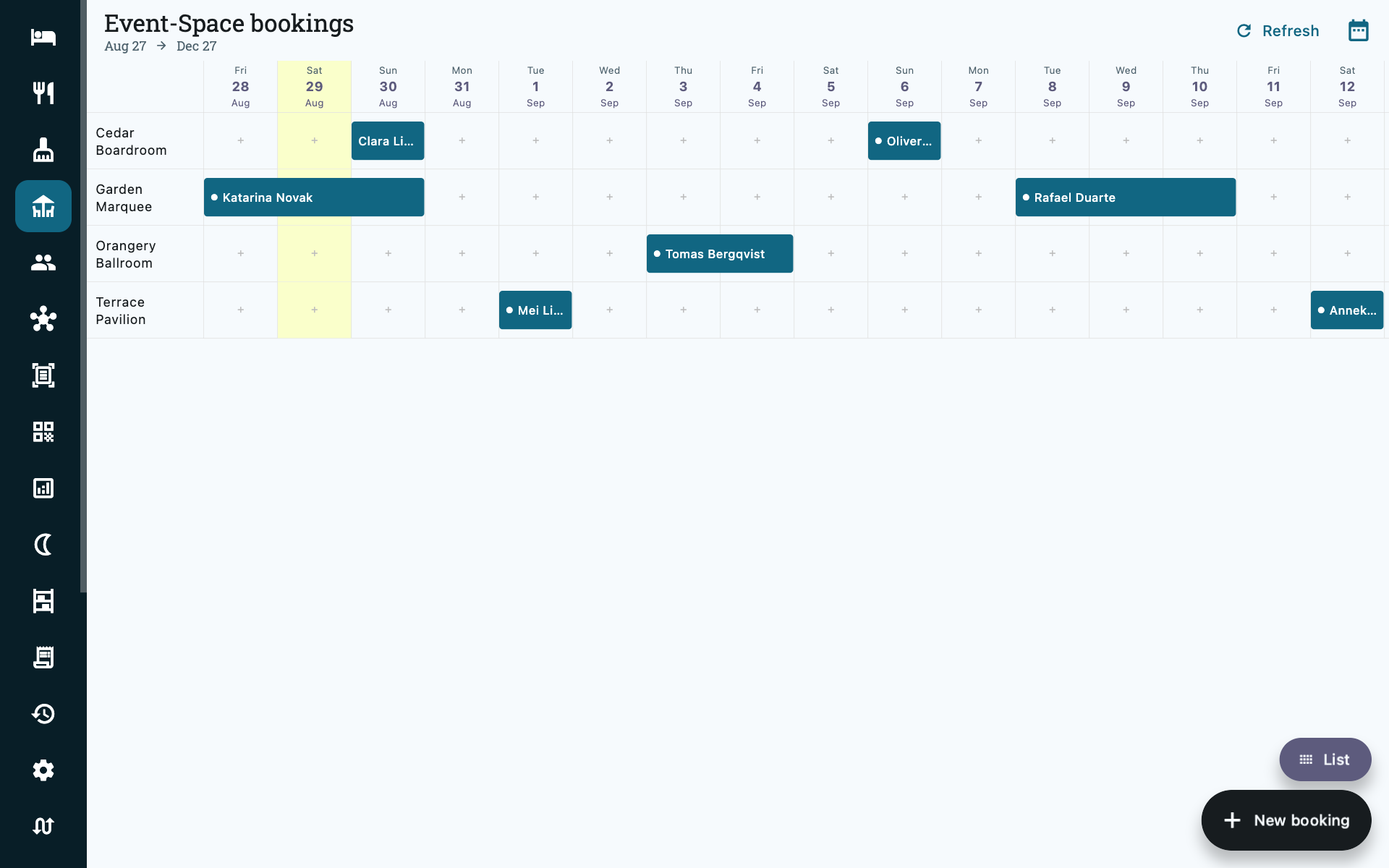
- Tap an empty cell to start a booking for that space and date — both are carried into the form, and the space is already selected for you.
- Tap a booking to open it.
- The dot on a bar means there is still money outstanding against the agreed figure. No dot, nothing owing.
- Today's column is highlighted, and the diary opens scrolled to it.
- Change dates (the calendar icon) moves the window.
- Cancelled bookings are not shown here — they have released the space, so showing them would be a lie about your availability. They are still in the list.
List
The same bookings as cards, and the view for chasing money: every card carries the agreed figure, what has come in, and what is still owed in red.
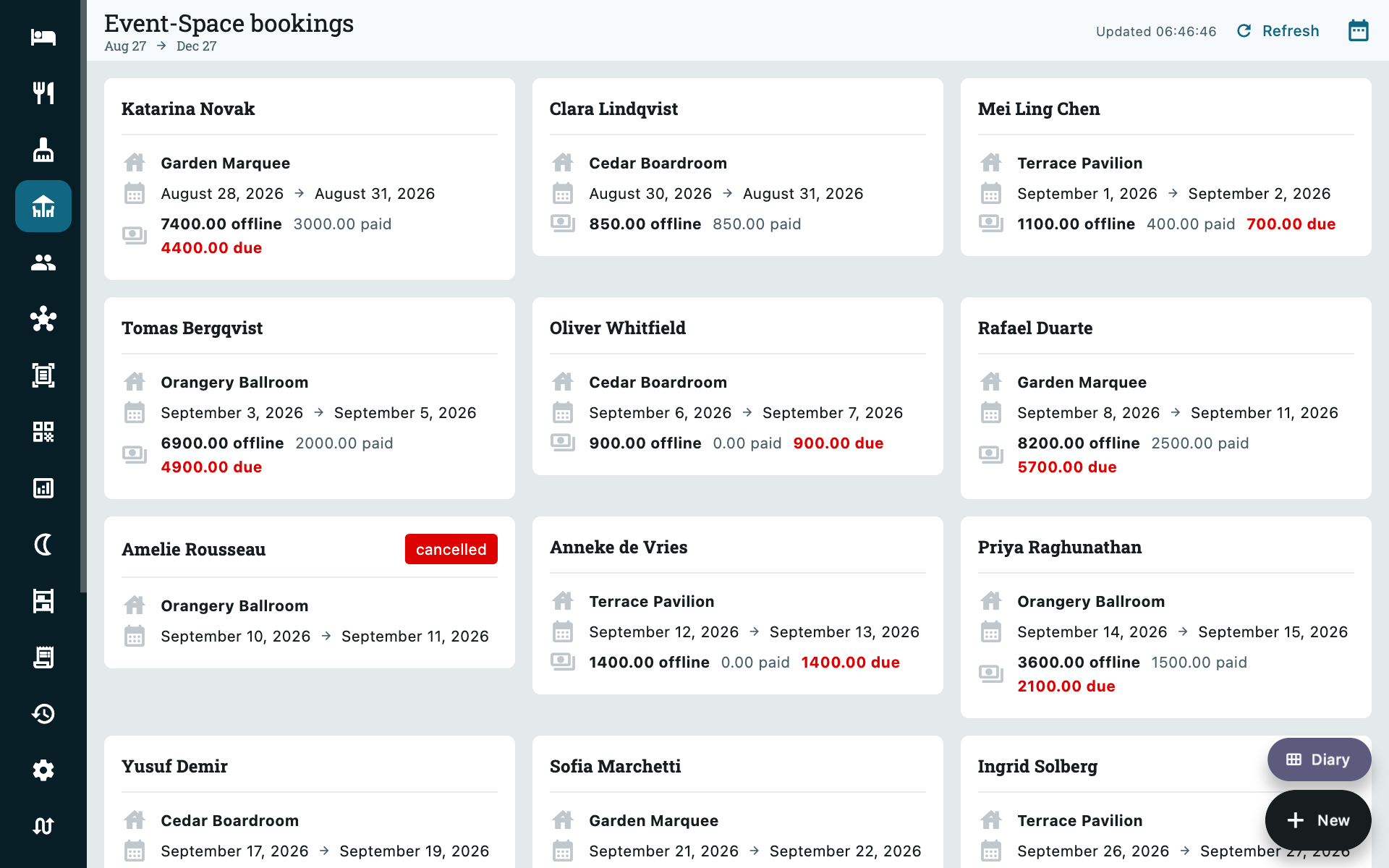
Cancelled bookings appear here, marked. So do bookings whose invoice has already been raised, marked Invoiced.
Taking a booking
+ New booking, or tap a free cell on the diary.
| Field | Notes |
|---|---|
| Dates | Pick the range the space is held for. The end date is the day it is released, so a one-day function runs from that day to the next. |
| Guest | Search existing guests, or add a new one without leaving the form. |
| Spaces | Only spaces genuinely free for those dates are offered. Pick more than one if the function spreads. |
| Total rent / amount | The agreed figure for the booking. See Offline payments below. |
| Internal notes | Anything your team needs — layout, timings, who is coordinating. |
| Invoice narration | What should appear on the invoice as a description. |
Hold the setup days too
A marquee that takes a day to dress and a day to strike is genuinely unavailable for three days, not one. Book the whole range — the diary then tells the truth when somebody asks about the day either side.
Double-booking is refused
If any space you have picked is already taken for any part of those dates, Zitlin refuses the booking rather than quietly accepting it. Change the dates or the space.
The booking
Tap a bar on the diary or a card on the list.
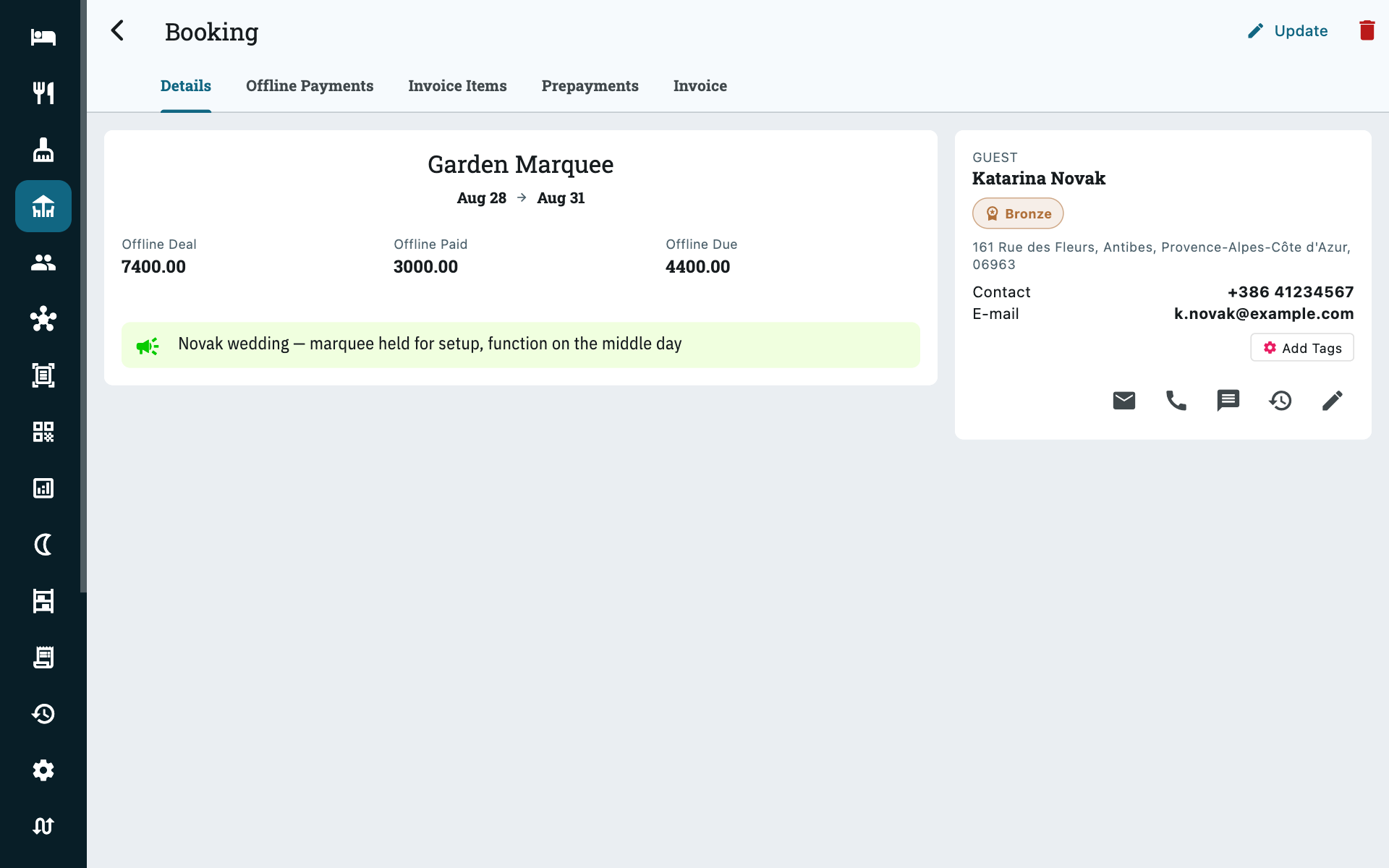
The Details tab is the summary: which space, which dates, the guest, your internal notes, and the three offline figures — agreed, received, outstanding. Update changes the booking itself; the bin cancels it.
Four more tabs sit alongside it, and the next sections are each one of them.
Offline payments
Booking → Offline Payments
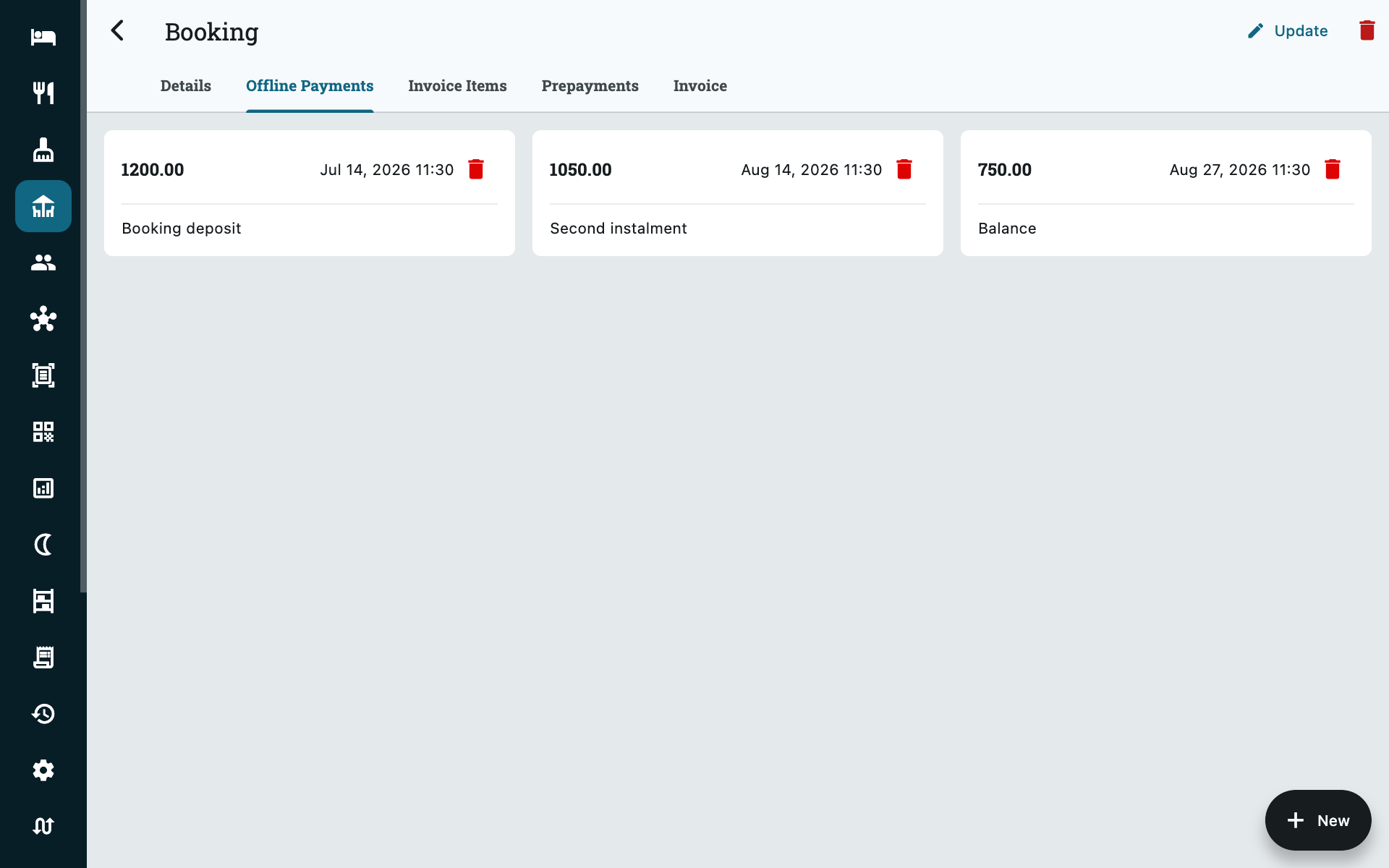
This is the ledger for the agreed figure you typed as Total rent / amount. A function is usually paid in instalments — something on booking, something nearer the day, the balance at the end — and this is where you record each one as it arrives.
+ New adds a payment with an amount, a date and a description. The three figures on the Details tab follow from it:
| Figure | What it is |
|---|---|
| Offline Deal | The agreed amount, from the booking form. |
| Offline Paid | The sum of the payments on this tab. |
| Offline Due | The difference — what is still to come in. |
That last figure is what the list view shows in red and what the dot on a diary bar means, so keeping this tab current is what makes the whole screen useful for chasing a balance.
This ledger does not reach the invoice
Nothing on this tab appears on the guest's invoice, and none of it is counted as revenue in your reports. The invoice is built from Invoice Items only. If you want something to be billed and reported, it belongs there instead.
A mistyped entry can be removed with the bin on its card.
Invoice items
Booking → Invoice Items
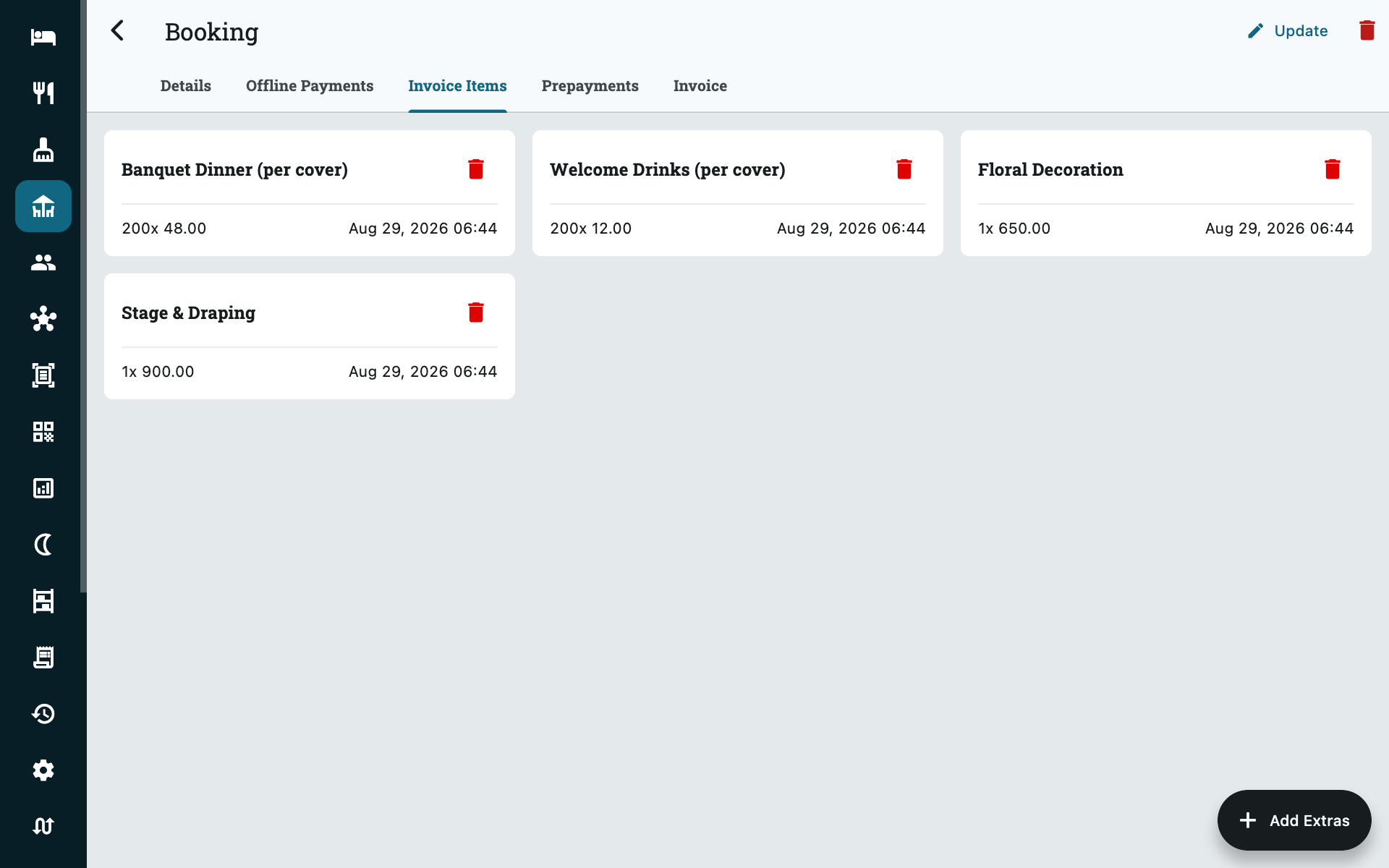
Everything that goes on the invoice. Add Extras puts one on the booking.
| Field | What it does |
|---|---|
| Select Extra | Which item, from the catalogue you set up under Settings → Spaces → Add Ons. |
| Price per unit | Filled in from that item's default price, and editable here. |
| Quantity | How many. Per-cover items are where this earns its keep — 200 covers at 48.00 is one line. |
Editing a price here changes it for this booking only; the catalogue price is left alone.
Prepayments
Booking → Prepayments records money taken against the invoiced side — cash, card, bank transfer, QR. Unlike offline payments, a prepayment here reduces the balance shown on the invoice and does appear in your reports.
Security deposits are a room-side feature for now; an event space taking a refundable damage deposit has to record it against a folio.
The invoice
Booking → Invoice
Before you raise it, this tab shows a draft: the add-on lines, the tax, any deposits, and the total. Nothing is written until you generate it.
Once generated, the booking is marked Invoiced, the invoice gets its own document number in the event-space sequence, and the add-ons and deposits become read-only — the bill is now a document, and documents do not change underneath people. The booking appears with an Invoiced chip in the list.
Event-space invoices show as their own line in Reports → Revenue, separate from rooms and the restaurant.
A booking with no invoice items invoices for zero
That is expected, not a bug — the space itself carries no rate. If a function should produce a bill, give it at least one invoice item.
Cancelling
Open the booking and use the bin in the top-right corner.
The space is released back to availability immediately and the booking drops off the diary. It stays on the list, marked cancelled, so the enquiry is not lost.
Cancelling cannot be undone
There is no un-cancel — you would have to take the booking again. Anything already recorded against it stays on the booking for you to deal with.
Setting up your spaces
Settings → Spaces. Admin only.
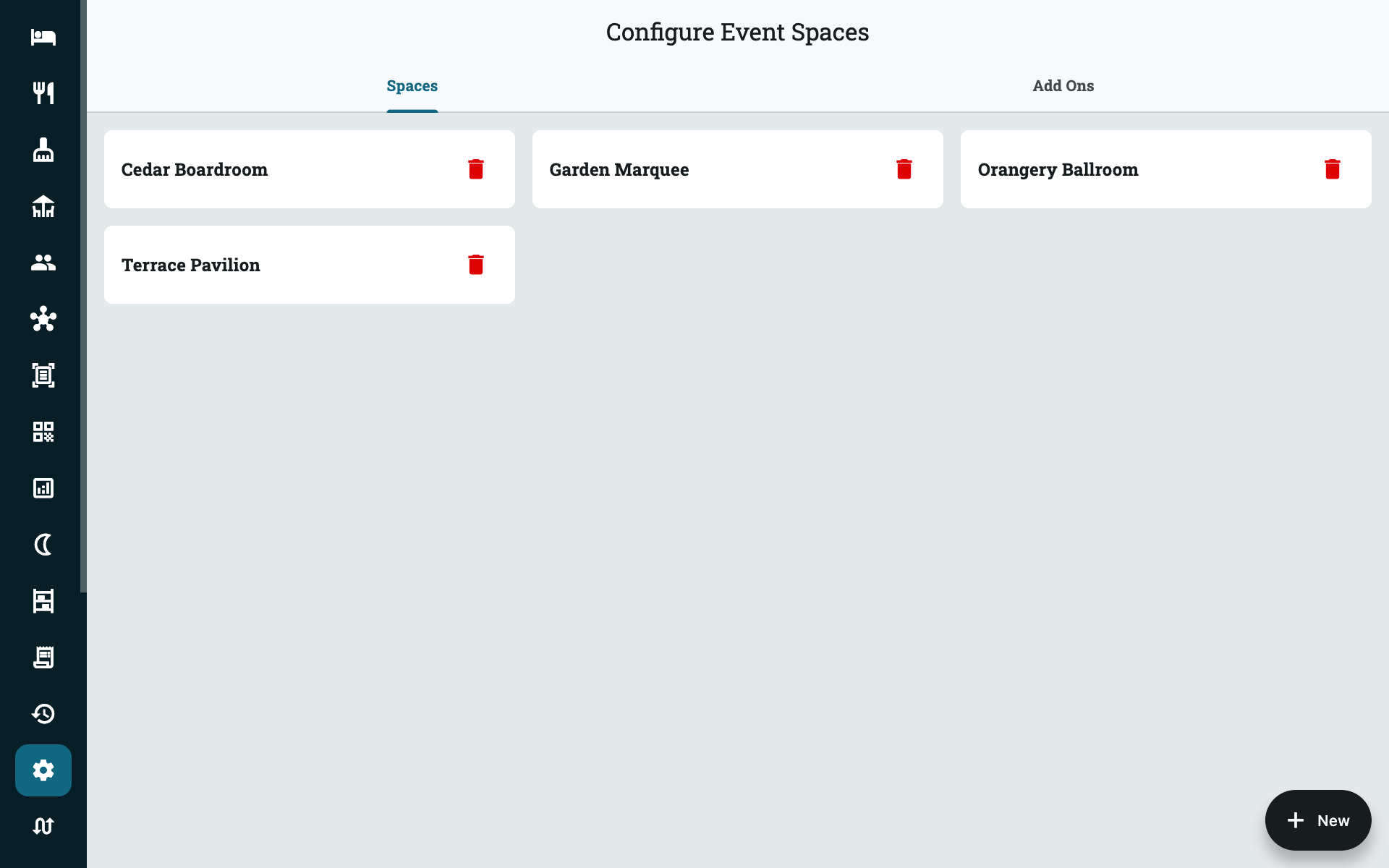
The Spaces tab is the list of what you let out. A space needs only a name — give it the one your team actually says out loud, because that is what appears down the side of the diary.
Deleting a space disables it rather than erasing it: existing bookings keep working and show it marked (disabled), but it is no longer offered on new ones.
Add-ons
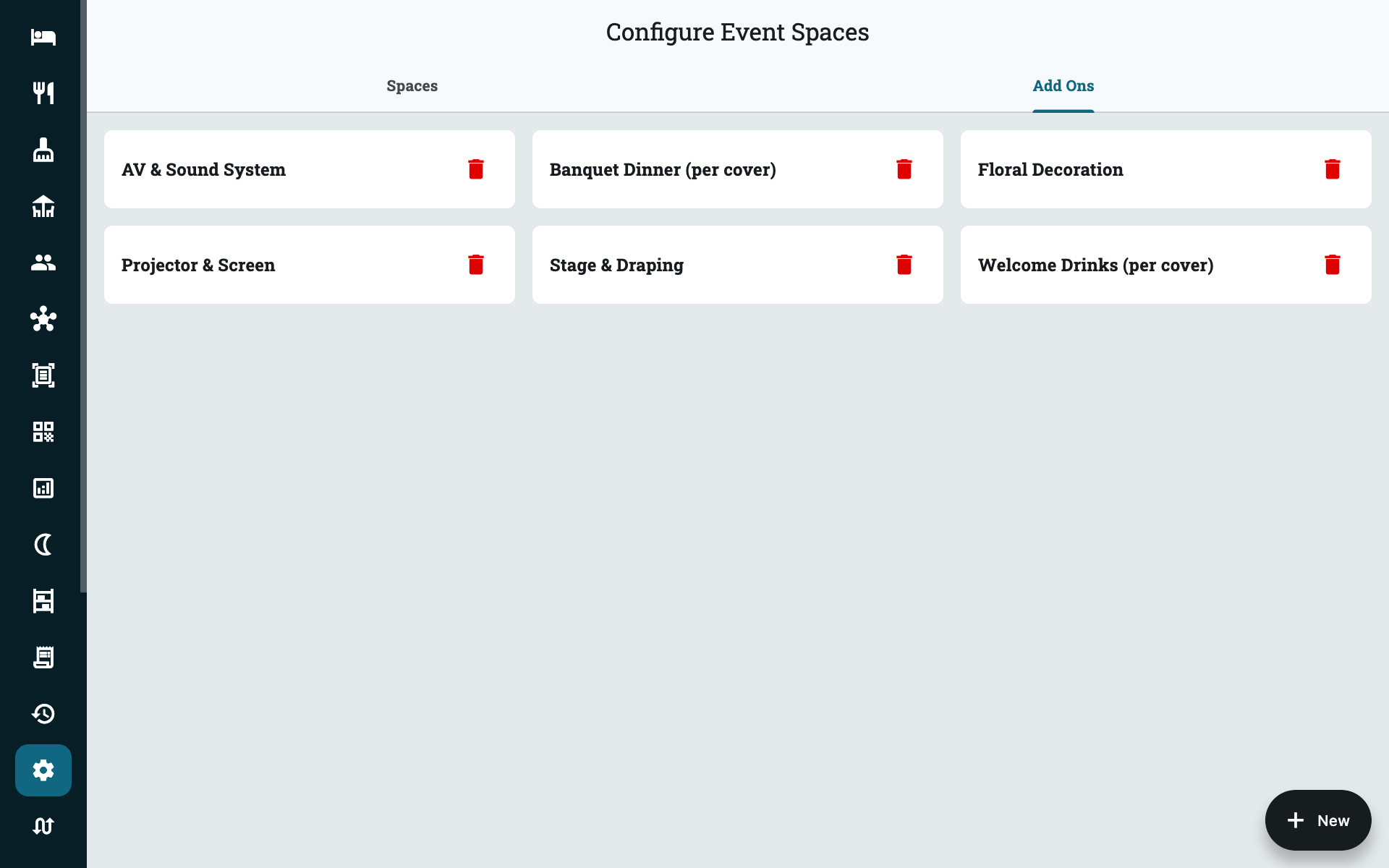
The Add Ons tab is the catalogue every invoice item is drawn from — your banquet menus, decoration, staging, AV. Each carries a default price and a tax rate.
Name per-cover items so it is obvious, as in the screenshot above. The person adding Banquet Dinner (per cover) to a booking then knows to put 200 in the quantity box rather than a total.
Common questions
Why is there no price on the space itself?
Because what a function is worth is rarely the room. Two weddings in the same hall on the same day of the week can be worth very different amounts depending on covers, menu and staging. Zitlin therefore prices the things you actually agreed — the add-ons — and lets you record the overall figure separately.
Can I hold a space provisionally while the client decides?
Take the booking. It holds the space, which is what a provisional hold is for, and cancelling releases it in one action. Put the situation in the internal notes so nobody treats it as confirmed.
Two functions in the same space on the same day
Not currently possible — a space is held for whole days. In practice a space rarely turns over twice in a day once decoration and setup are accounted for, but if you genuinely run a morning and an evening function in the same room, set them up as two separate spaces.
Who can see event spaces?
Admins and accountants. Rooms and restaurant managers do not see the menu entry, and housekeeping staff cannot reach the bookings.
A guest paid part by card and part by arrangement
Record the card payment as a Prepayment, so it lands on the invoice, and the rest under Offline Payments. The booking then shows both, and neither figure is doing the other's job.
Can housekeeping clean an event space?
Yes — raise a task against it the same way you would for a room. See Housekeeping.